
Step 1:login to weblogic administration console page.
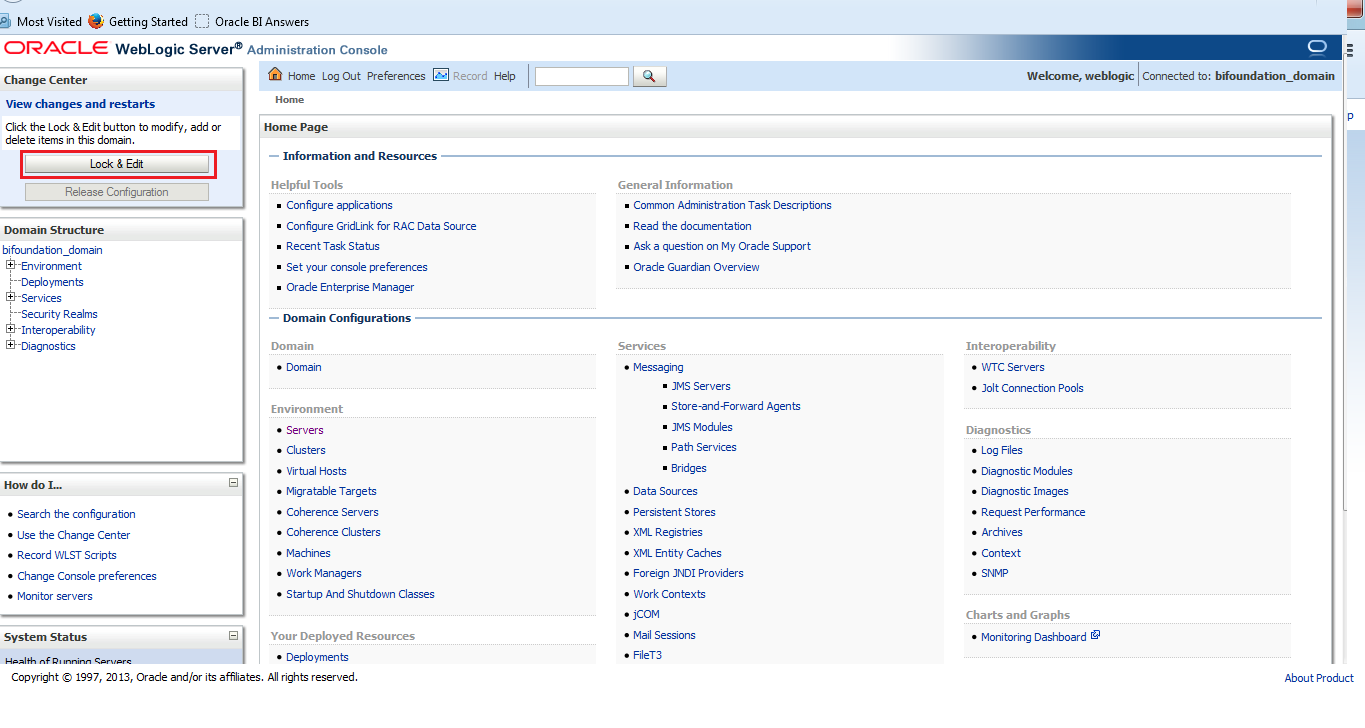
Step 2:Click Lock & Edit
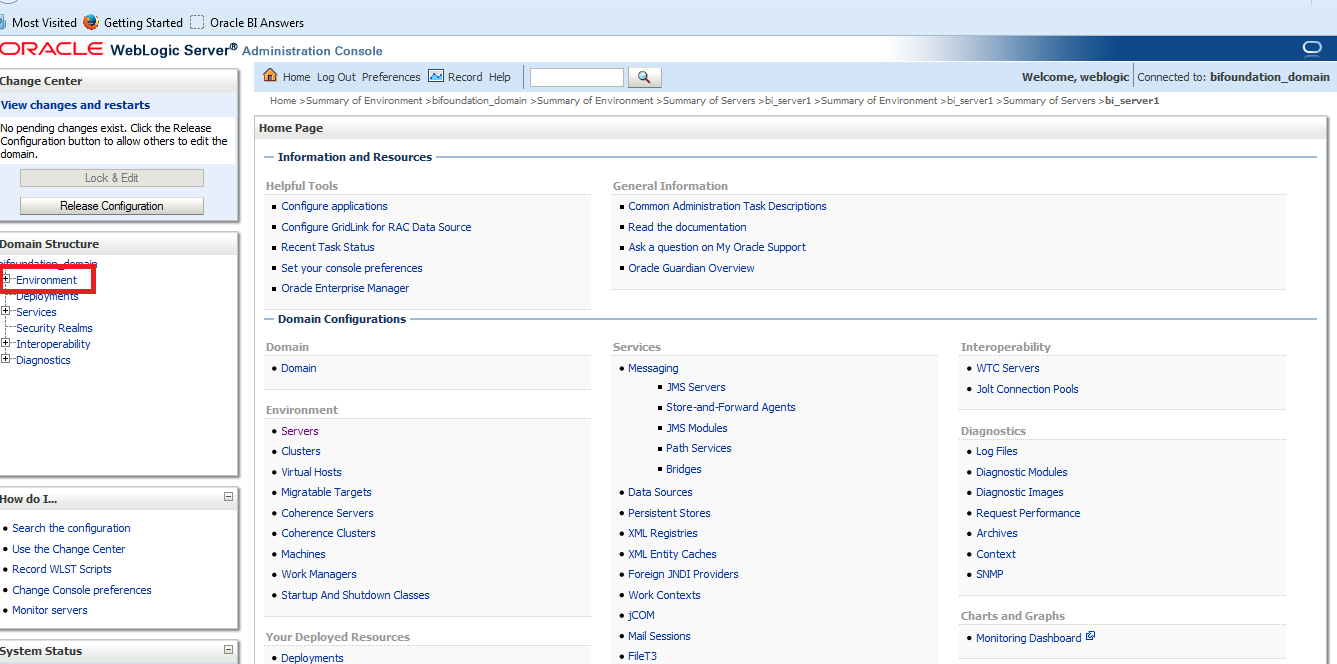
Step 3:Click Environment
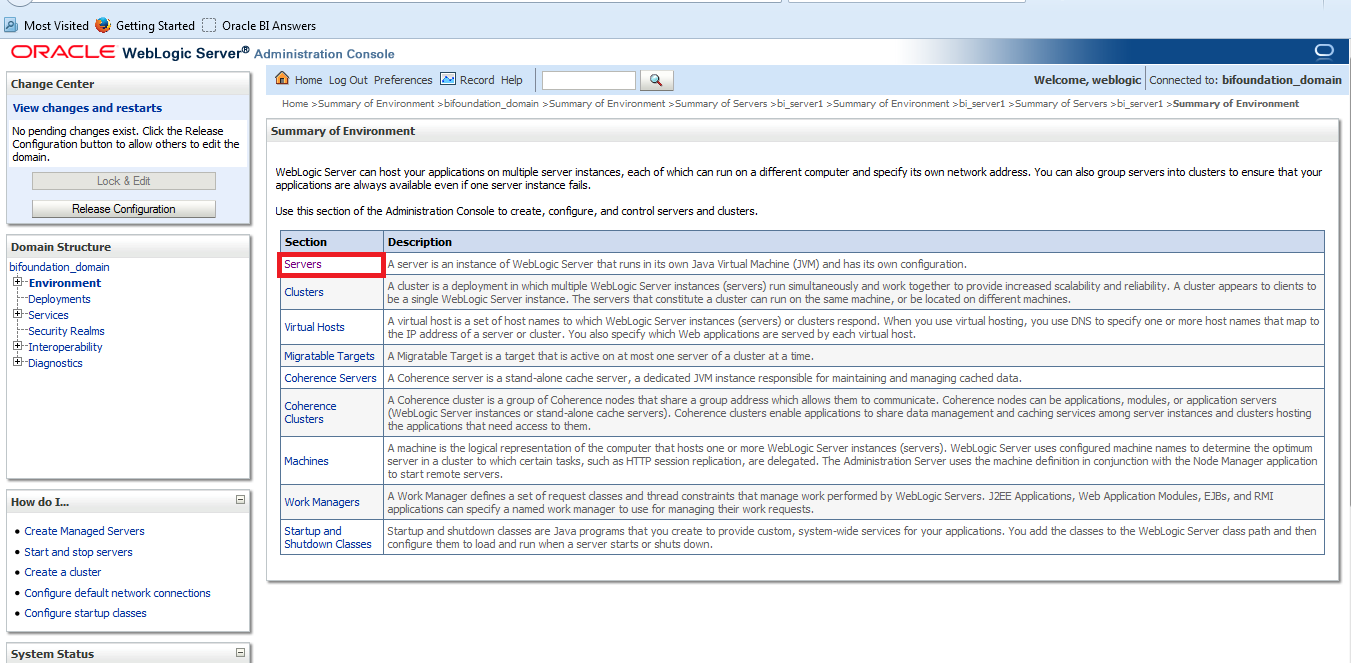
Step 4:click Servers
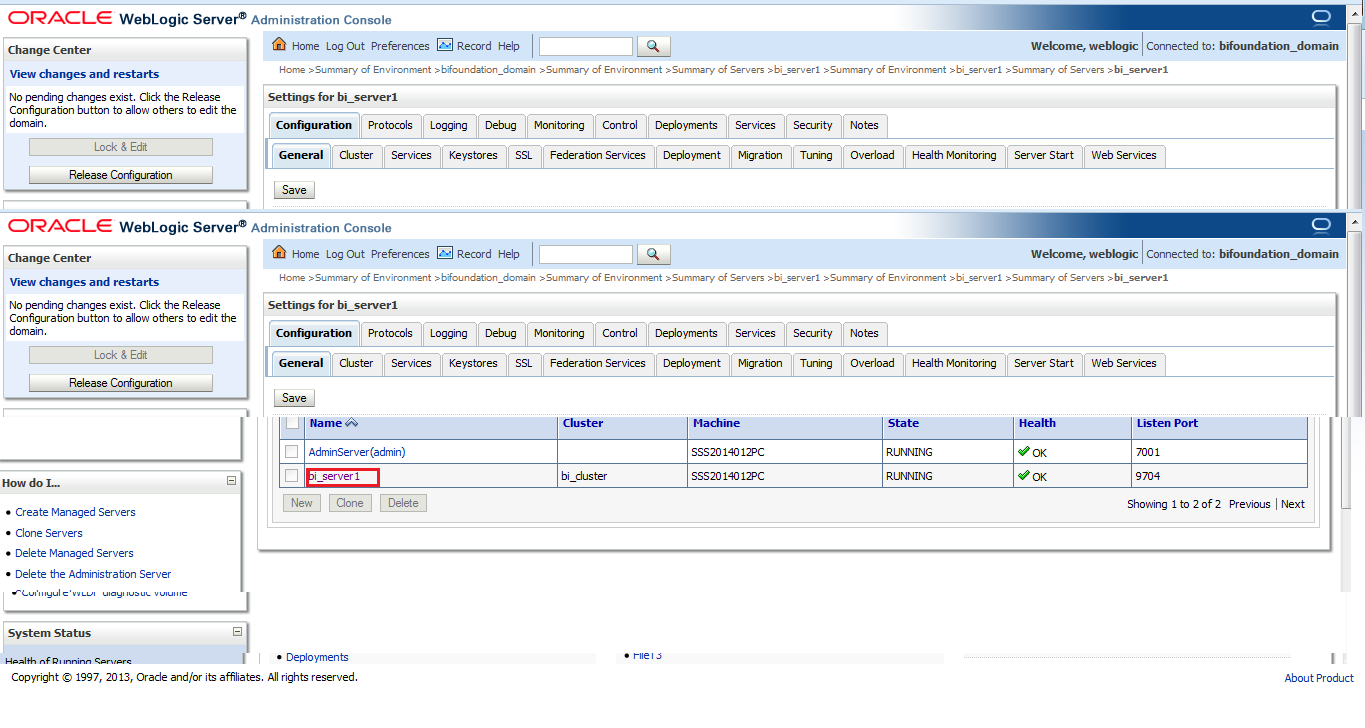
Step 5:
Click bi-server1
Step 6:
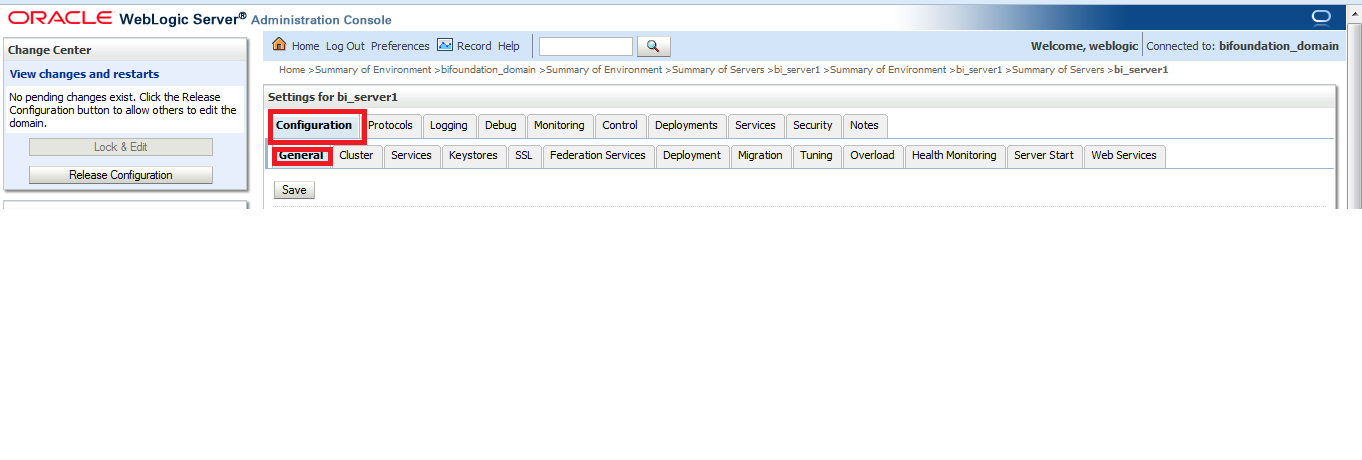
Go to Configuration and genaral tab
step 7:
Check the SSL Listen Port Enabled and change the port number to 443
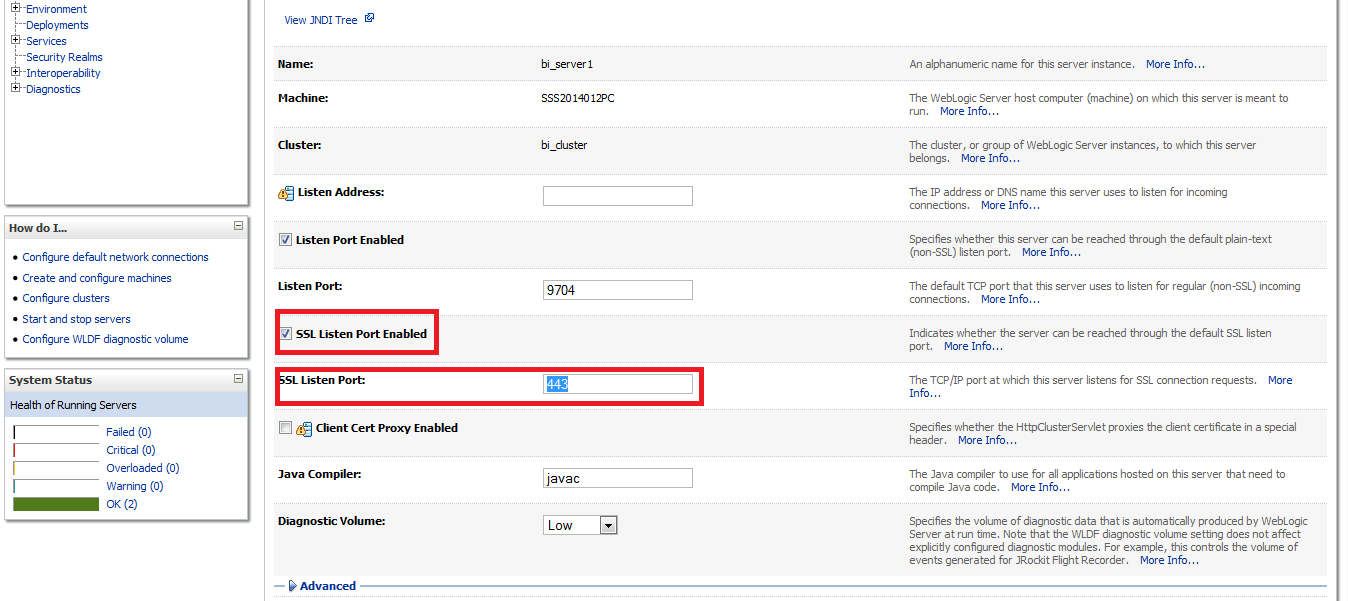
(*1: 443 is the default SSL port and is automatically recognised by most browsers)
(*2: 80 is the default non SSL port is automatically recognised by most browsers)
Step 8:
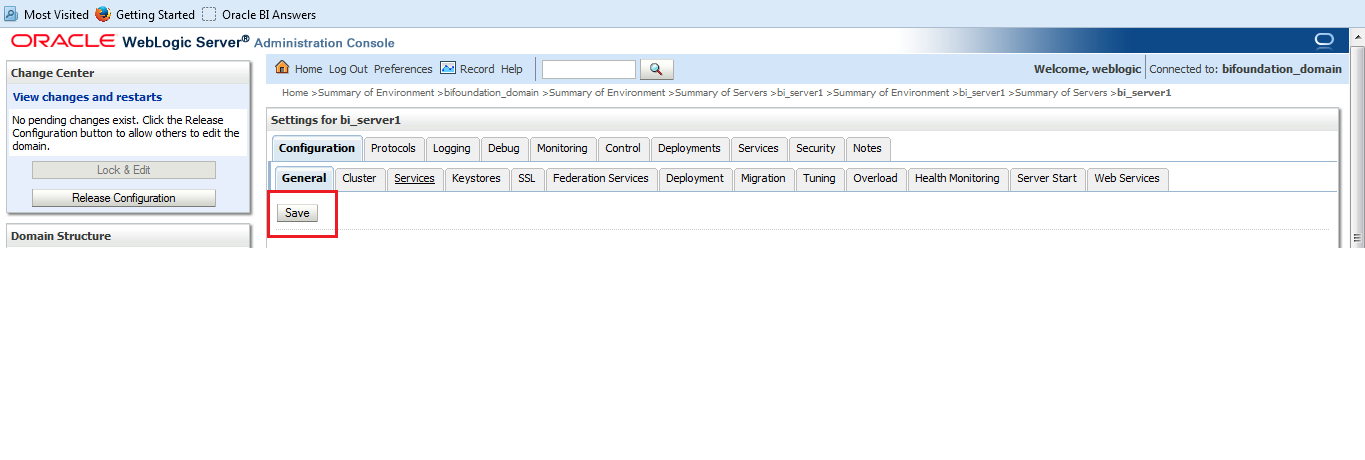
Click Save.
Step 9:
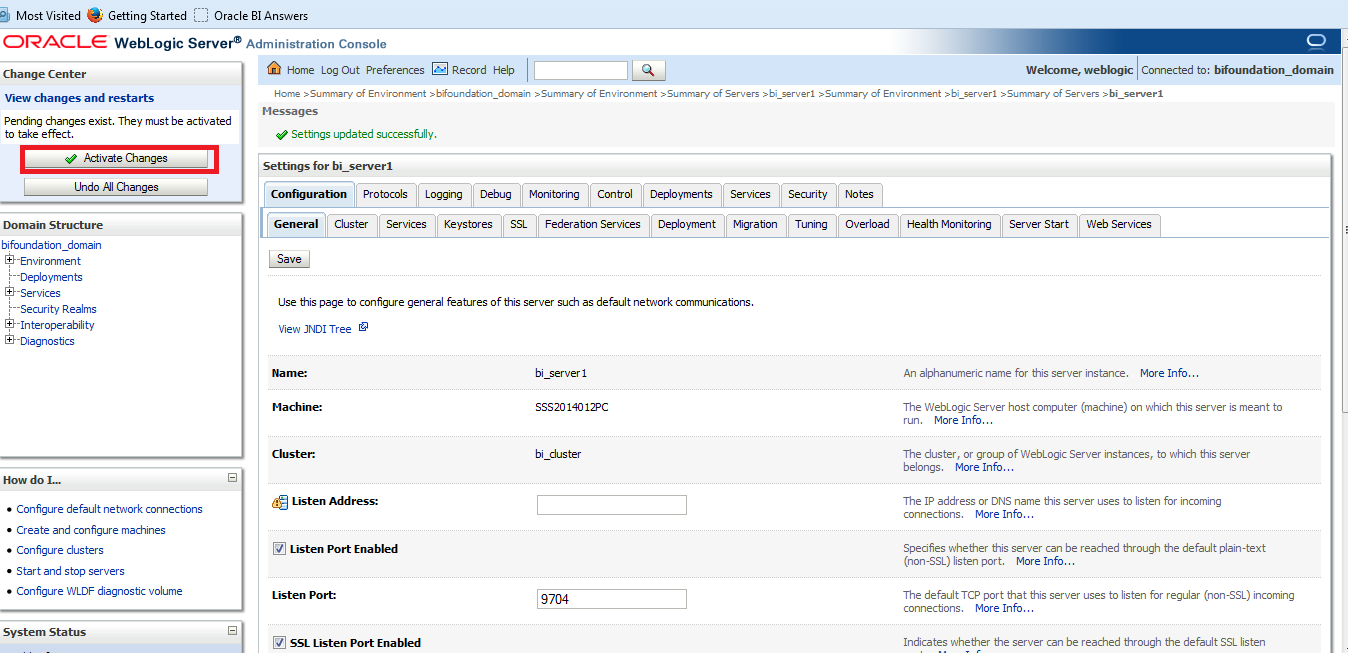
Then click Activate Changes
Step 10:
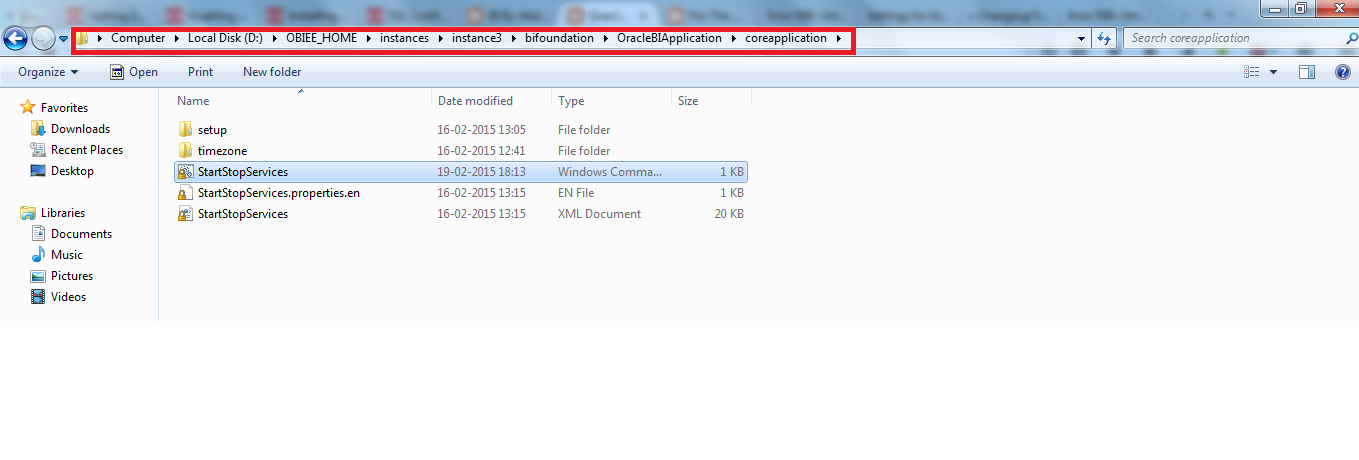
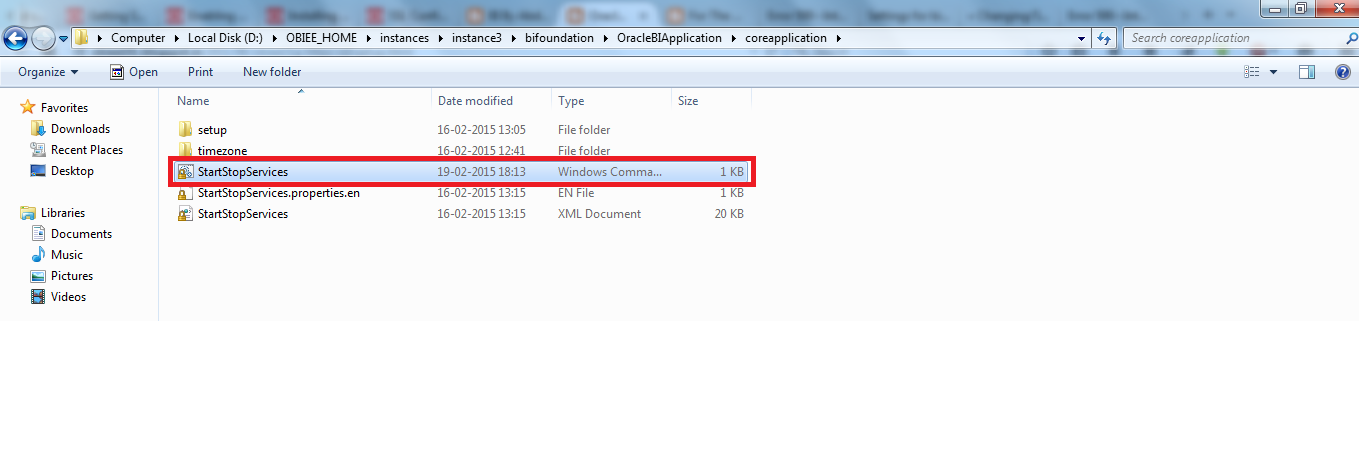
We need to edit the StartStopServices.cmd file,
usally found in : <<BI_HOME>>\instances\instance1\bifoundation\OracleBIApplication\coreapplication
In my Case D:\OBIEE_HOME\instances\instance3\bifoundation\OracleBIApplication\coreapplication
Step 11:
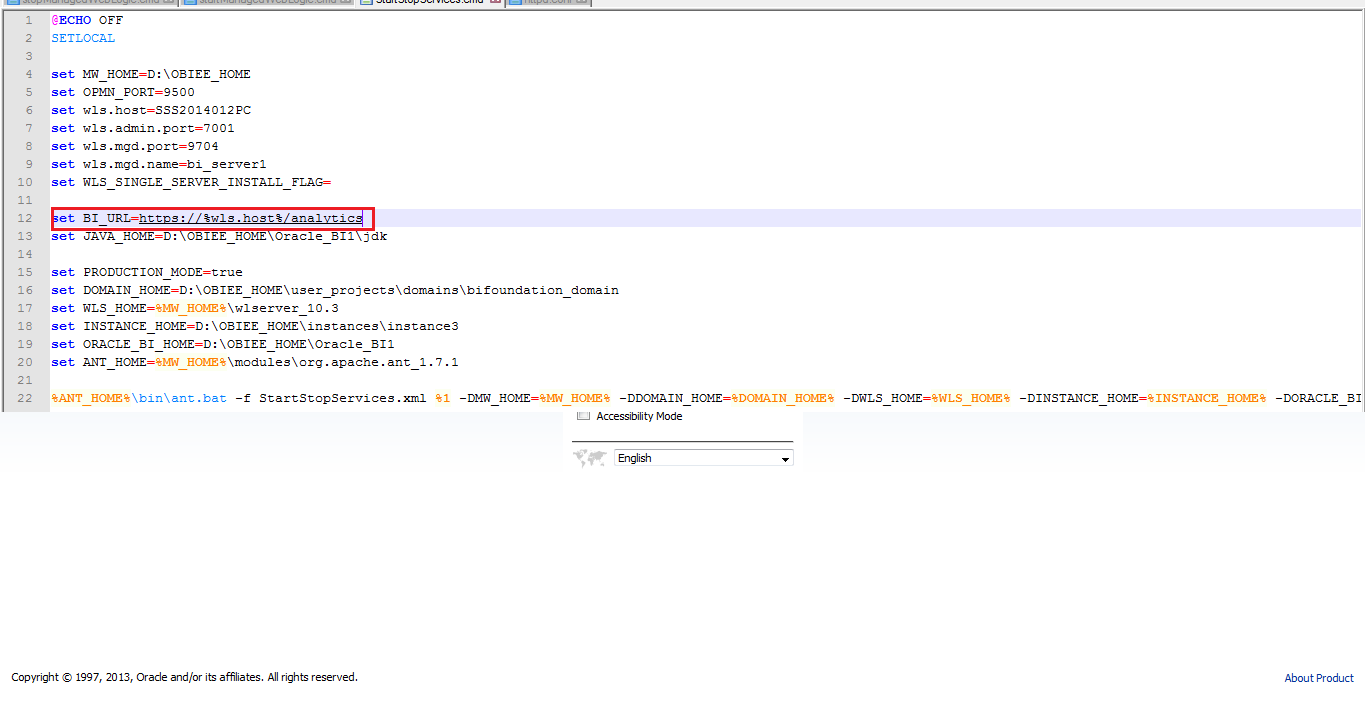
We have to change set BI_URL=http://%wls.host%:%wls.mgd.port%/analytics to
set BI_URL=https://%wls.host%/analytics
Step 11:
Reboot the System
Step 12:
Now login with https://host:port/analytics
In My case https:// SSS2014012PC:443/analytics
