Showing posts with label BI APPS. Show all posts

Tuesday, October 6, 2015

BIApps Installation : Loop Back Adaptor Creation


Loopback Adapter

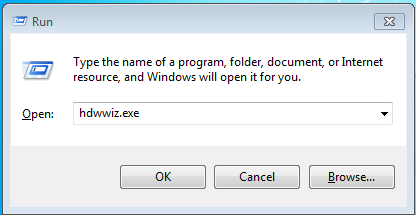
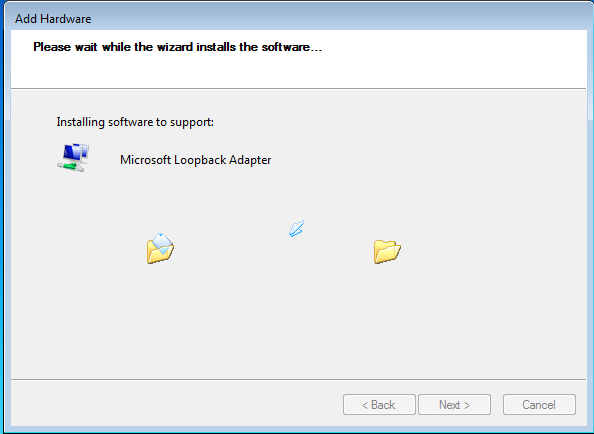
Open the Windows RUN Type hdwwiz.exe Click on OK


In the Welcome window, click Next 
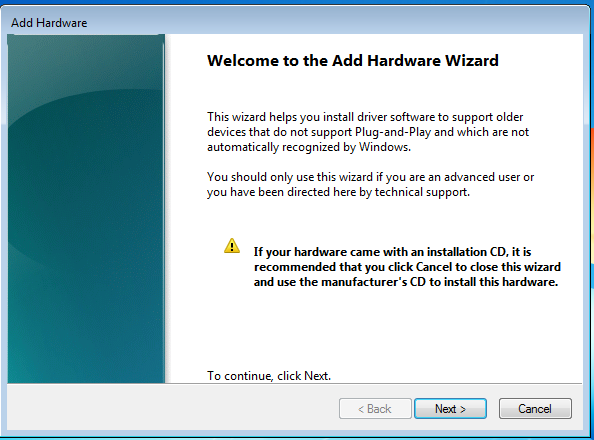

Select --> click Next
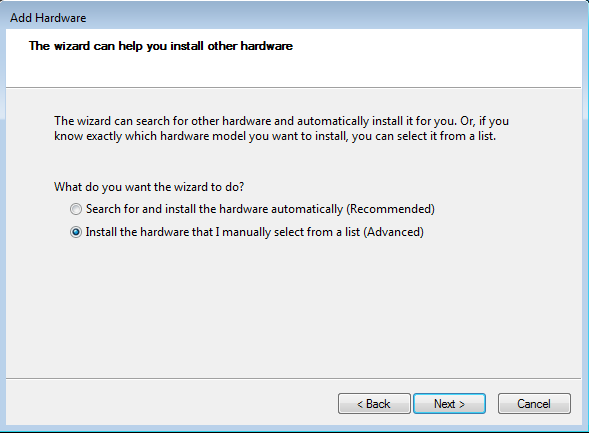

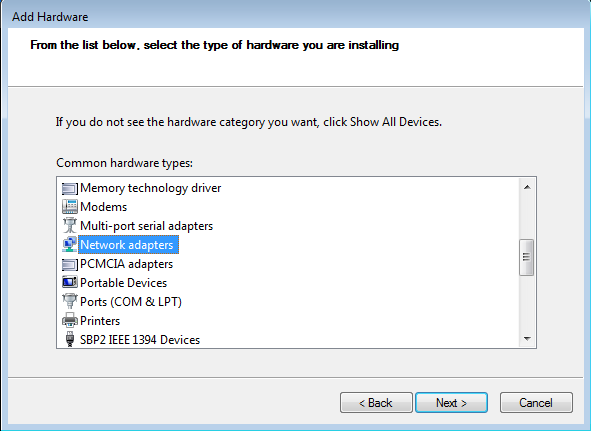
Select Network Adapters click Next


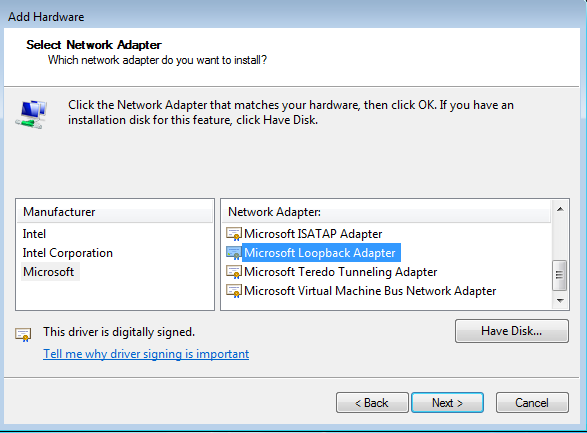
In the Select Network Adapter window, make the following selections:
  • Manufacturer: Select Microsoft.
  • Network Adapter: Select Microsoft Loopback Adapter
  • Click Next

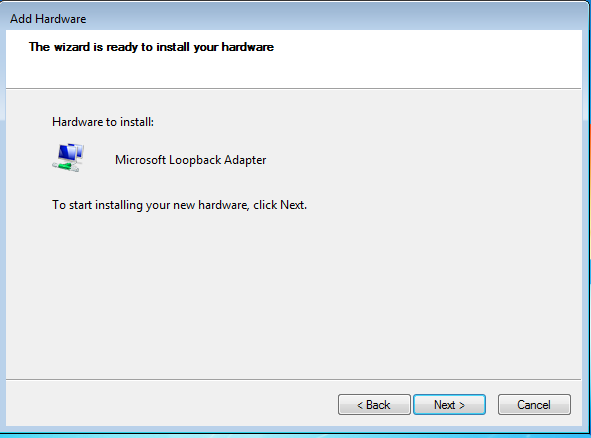
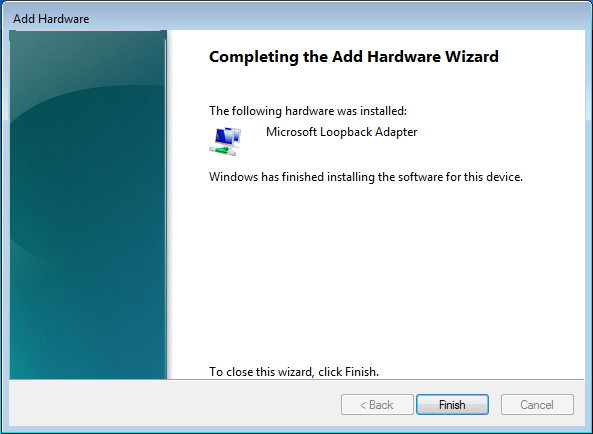
In the window ‘The wizard is ready to install your hardware’ click Next


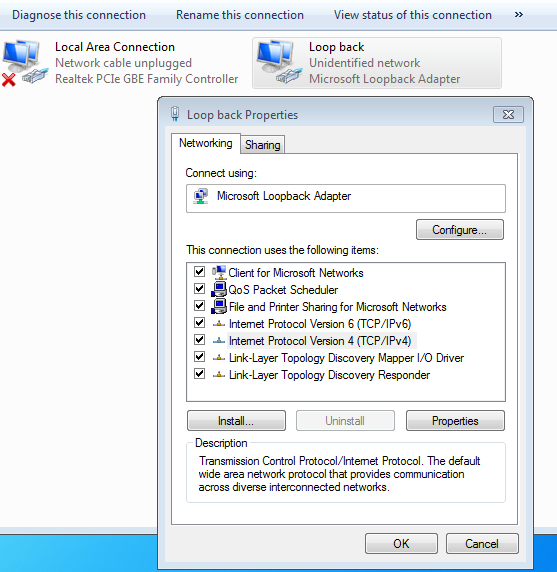
 Go to Control Panel\Network and Internet\Network Connections
 Right click on Microsoft Loopback Adapter   select Properties

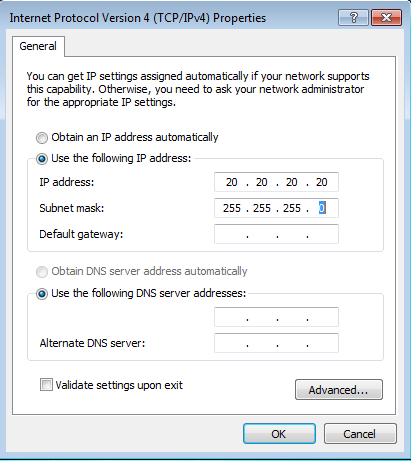
  1. In the Properties dialog box, click Use the following IP address and do the following:
  • IP Address: Enter a non-routable IP for the loopback adapter. Oracle recommends the following non-routable addresses:
    • 20.20.20.20
  • Subnet mask: Enter 255.255.255.0.
  • Leave all other fields empty.
  • Click on ok Close


Go to NotePad Right Click --> Run as Administrator

Go to path C:\Windows\System32\drivers\etc
Open hosts file in notepad and enter below line
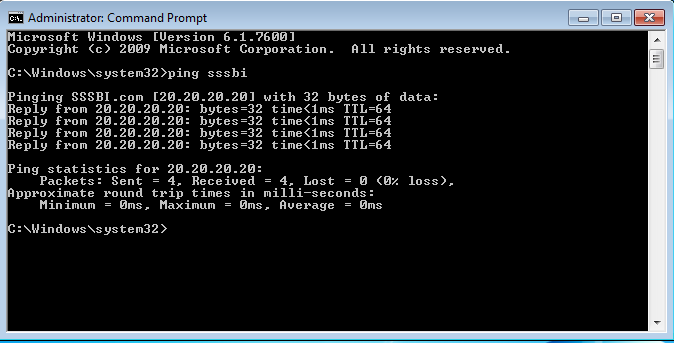
To validate the loopback configuration open a command prompt and enter the following:


... to be continued  Navigate to RCU 


Monday, October 5, 2015

BIApps Installation : Database Installation


Double click on setup file


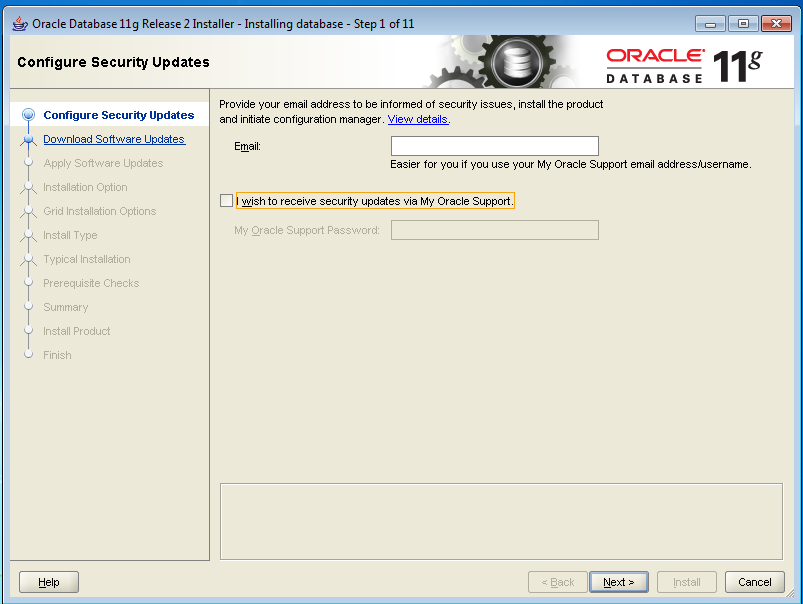
In welcome screen uncheck mail option


Click on YES

Select Skip Software Updates click on Next
Select Create and Configure database Click on Next
Select Server Class Click on Next
Select Single Instance Click on next
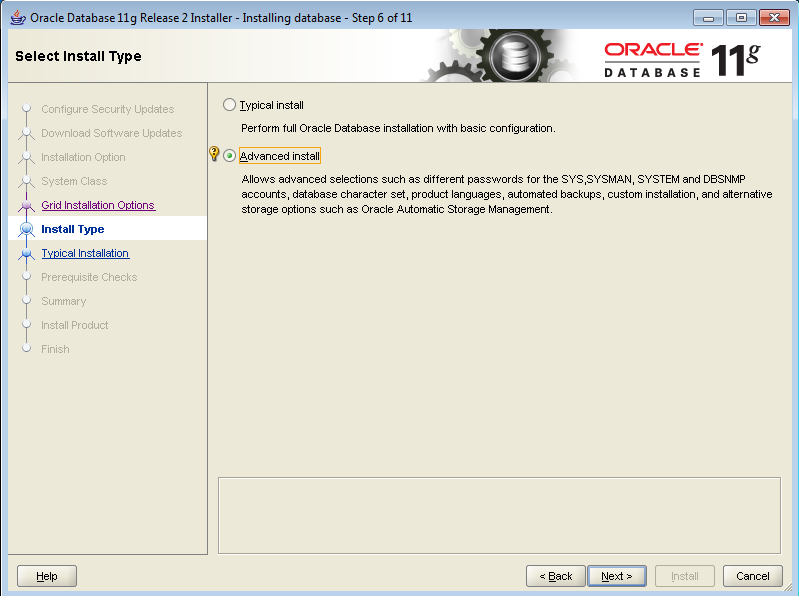
Select Advanced install click on Next
Leave default language as ENGLISH click on next
Select Enterprise Edition click on next
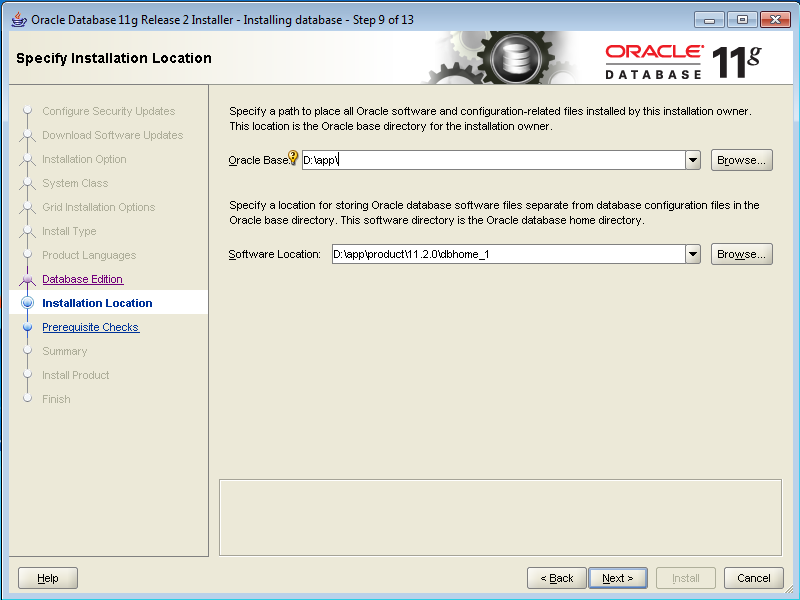
Leave default paths click on next
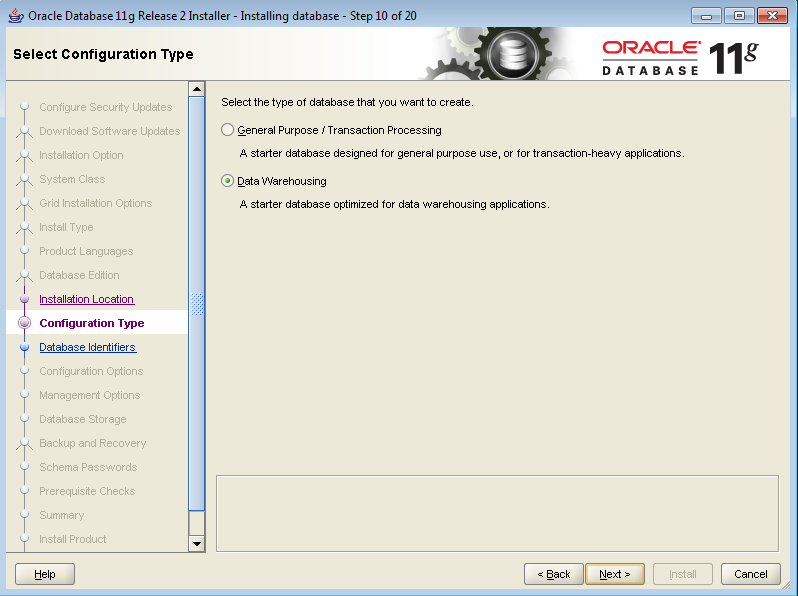
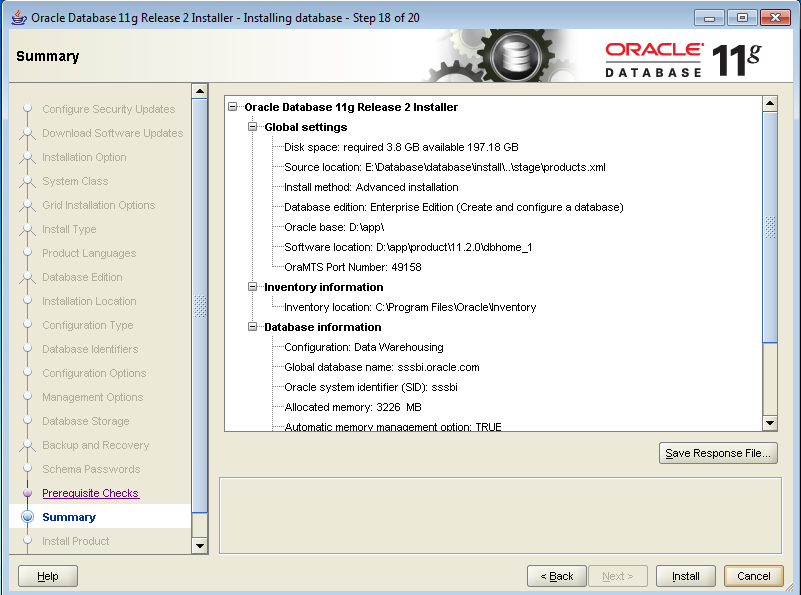
Select Data Warehouse click on NEXT
C:\Users\SSS2014039\Desktop\Capture.PNG
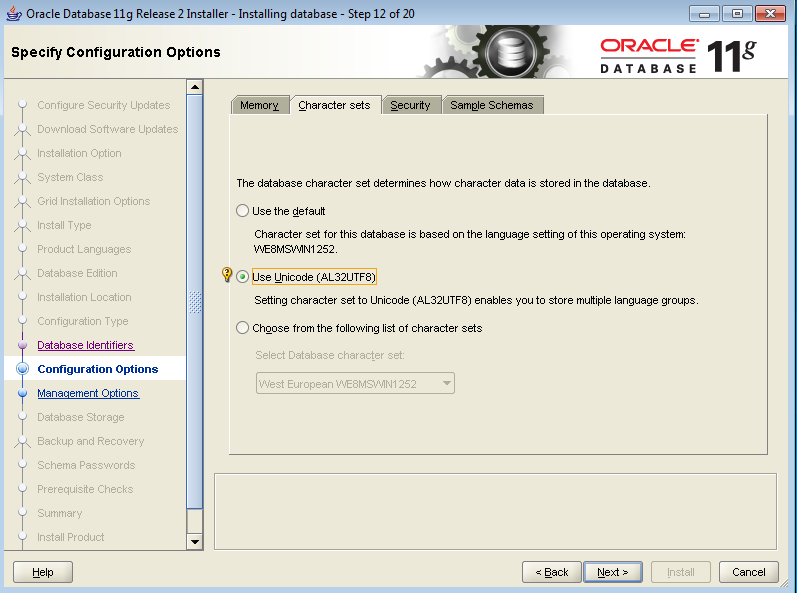
Under character set tab select unicode AL32UTF8
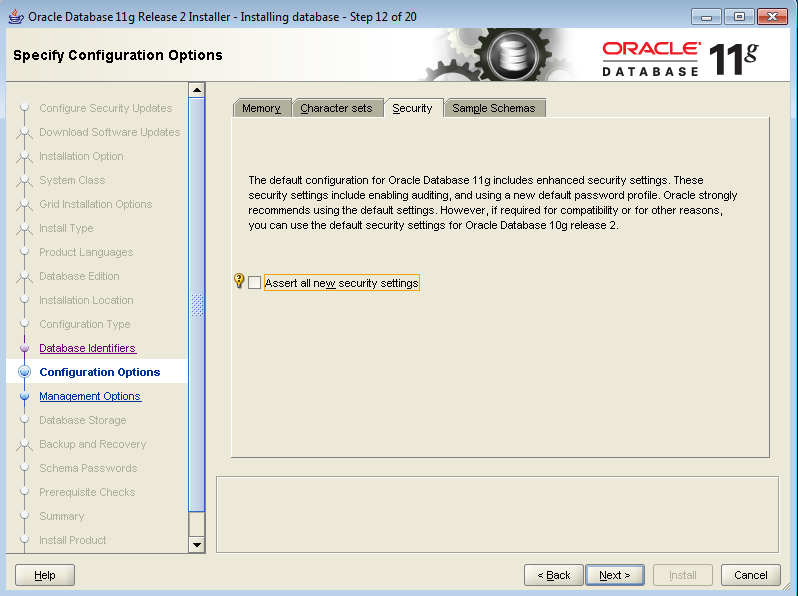
Under security tab UNCHECK Security option
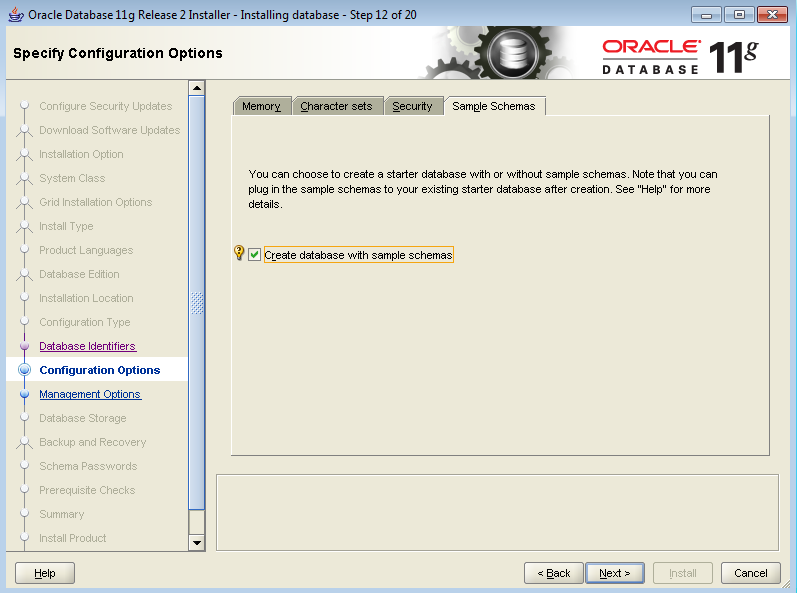
under sample schemas enable sample schemas
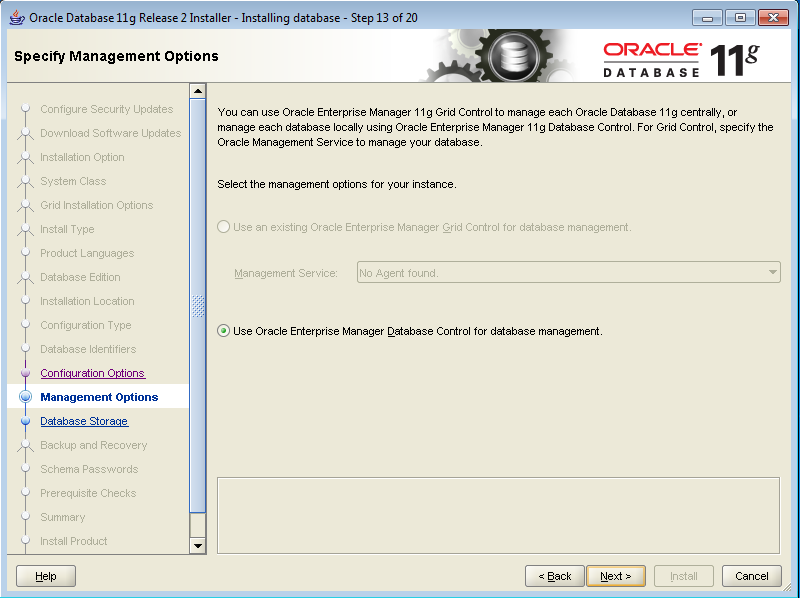
Click NEXT
CLICK NEXT
CLICK NEXT
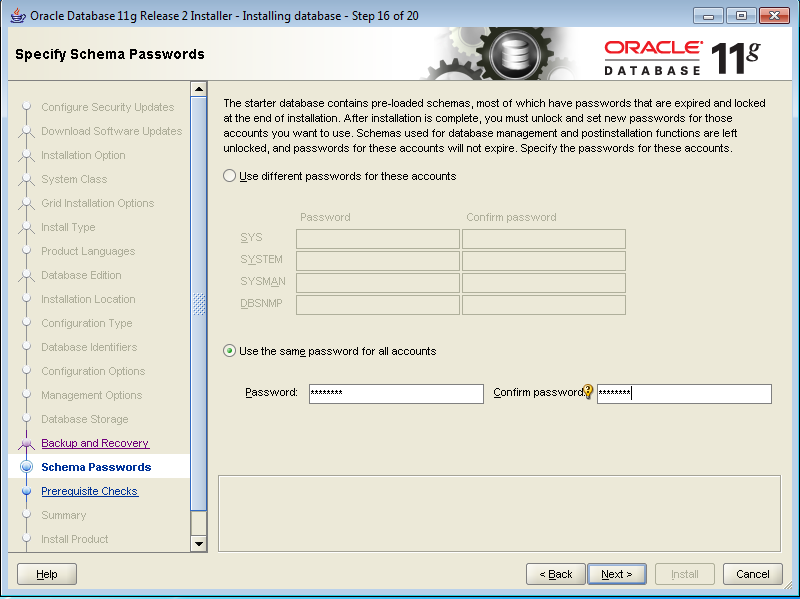
Provide password as Admin123
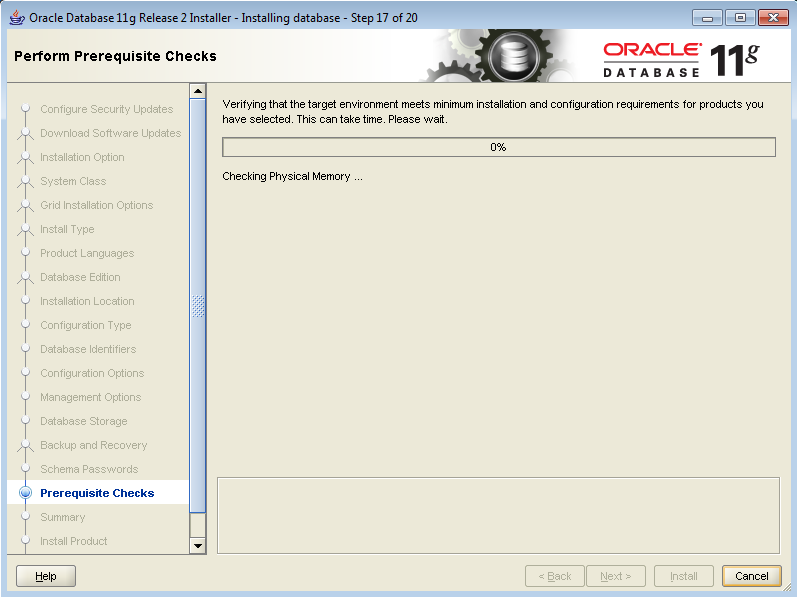
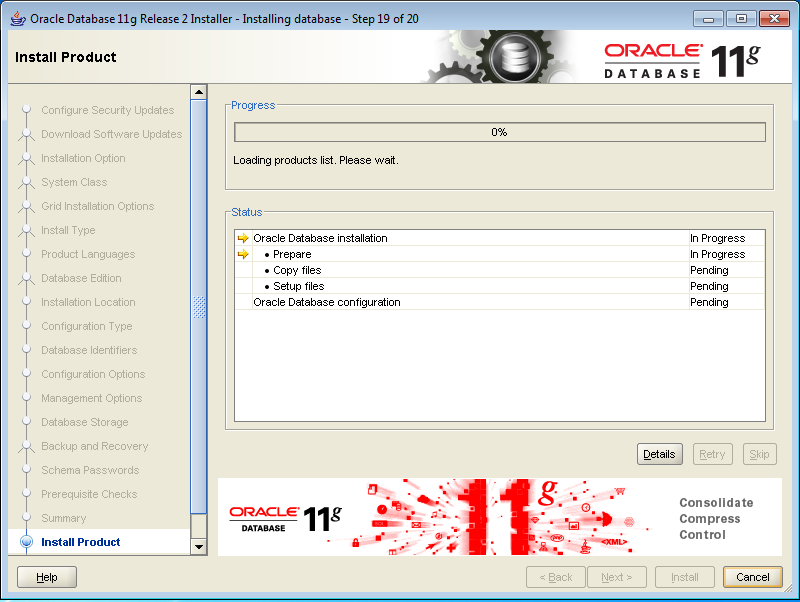
Click on INSTALL

Sunday, October 4, 2015

BIApps Installation : OBIEE RCU


In Our previous page we created Loop Back Adaptor. Please go to ... Previous Page 
Now we will create the OBIEE11g RCU

Go to directory \rcu\bin and double click on RCU (make sure there is no space in directory path)

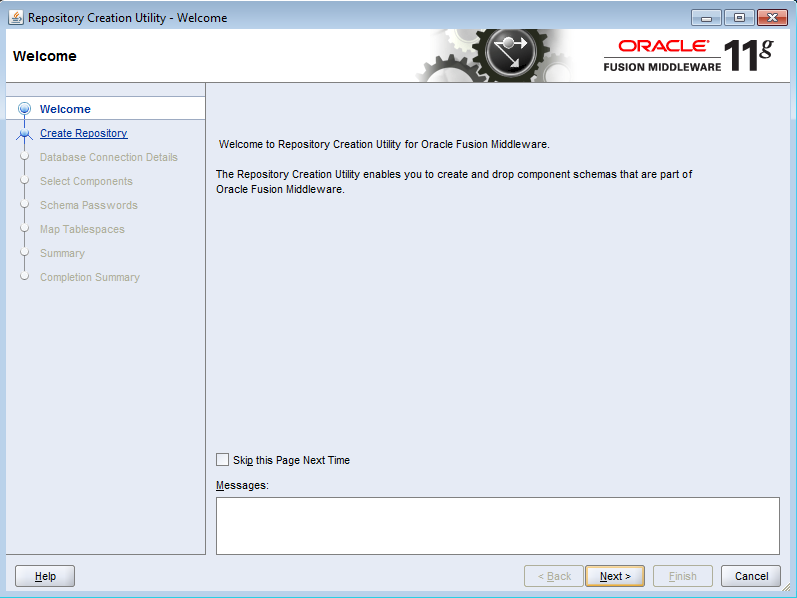
In welcome screen click on next


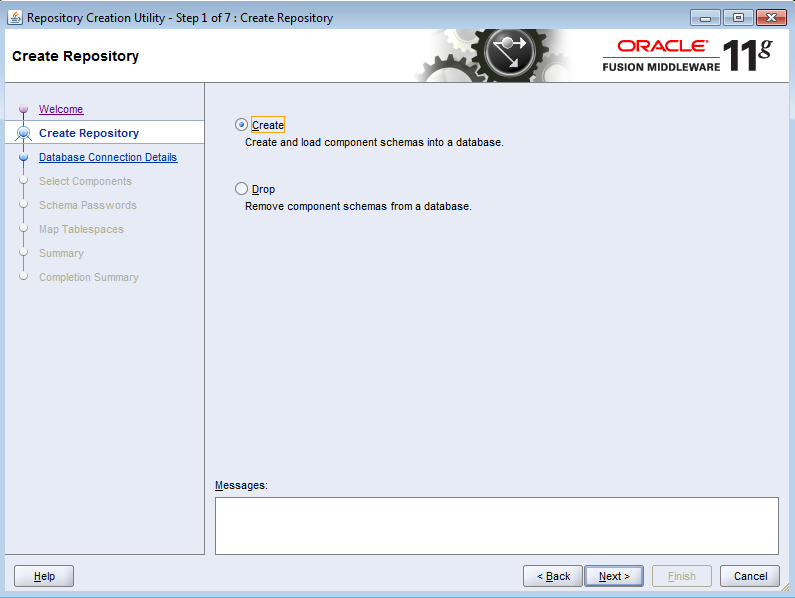
Select Create radio button Click on next


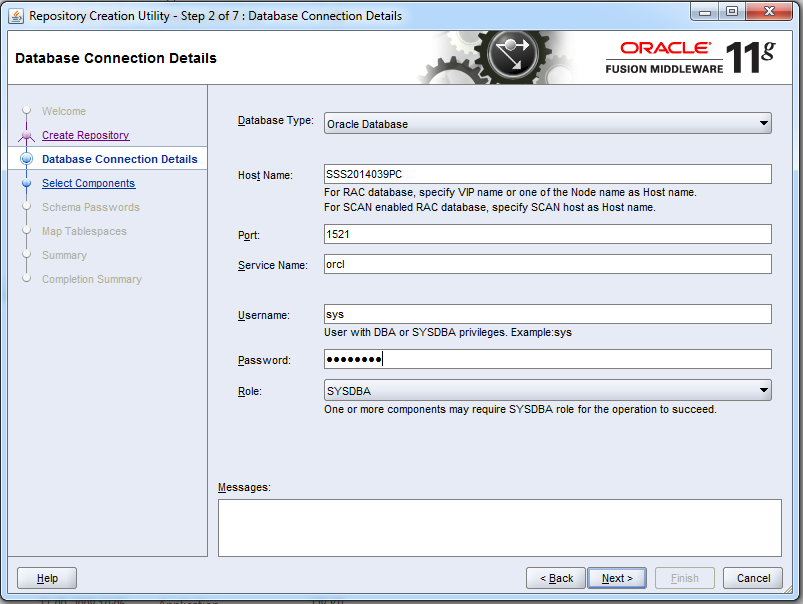
Provide below details

C:\Users\SSS2014039\Desktop\Capture1.PNG

Click on ok
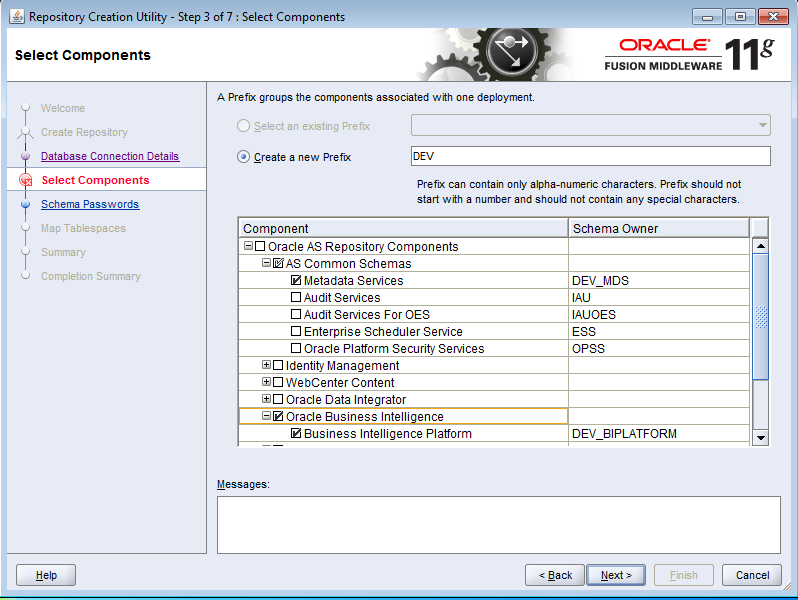
Expand oracle Business Intelligence select Business Intelligence Platform
Click on OK
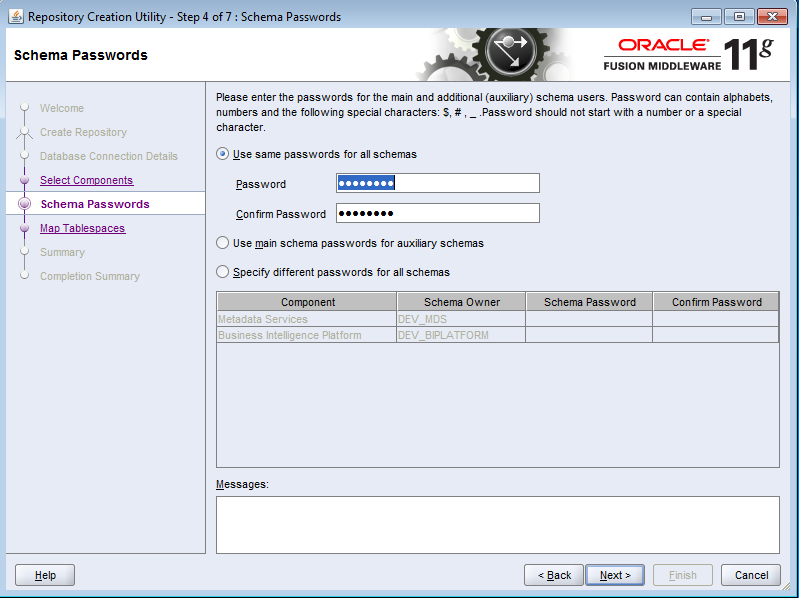
Provide password as Admin123
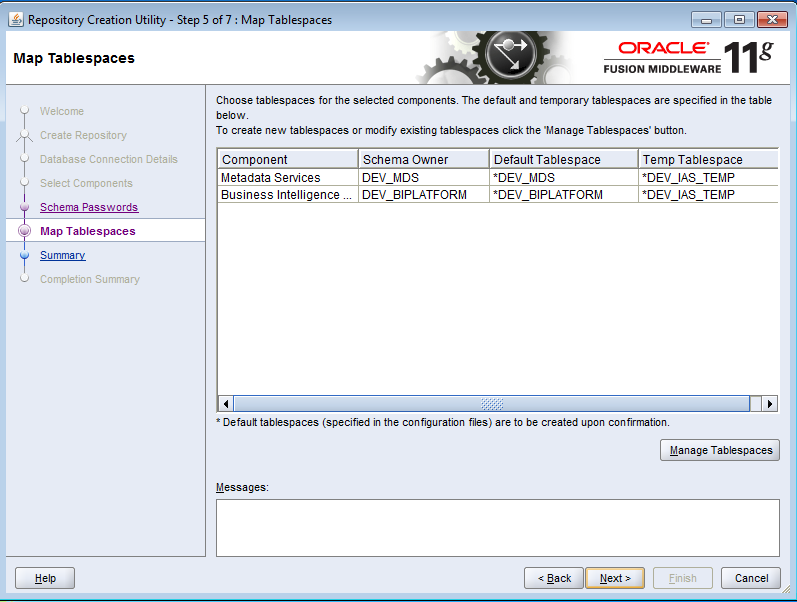
Click next
Click on OK
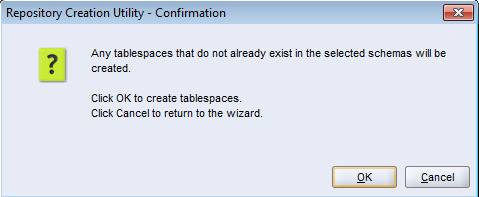
Click on OK
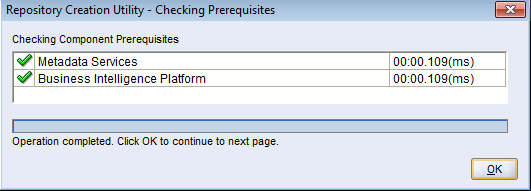
Click on Create
Click on CLOSE

Saturday, October 3, 2015

BIApps Installation : OBIEE 11G INSTALLATION


In Our previous page we created OBIEE11g RCU. Please go to ...Previous Page

Now we will see OBIEE11g Installation

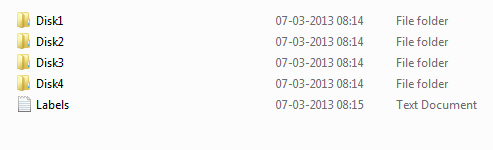
After extracting ZIP files ,you should have below four folders


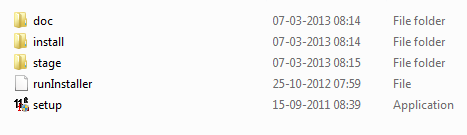
Open DISK1 and double click on SETUP


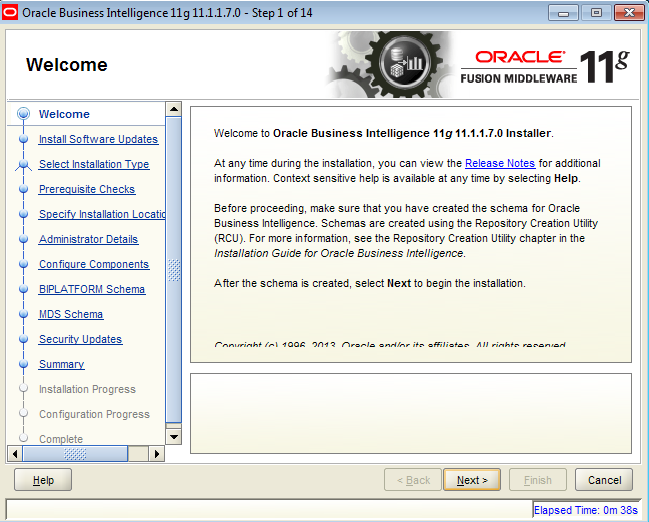
In Welcome Screen Click on NEXT


Select SKIP SOFTWARE UPDATES Click on NEXT

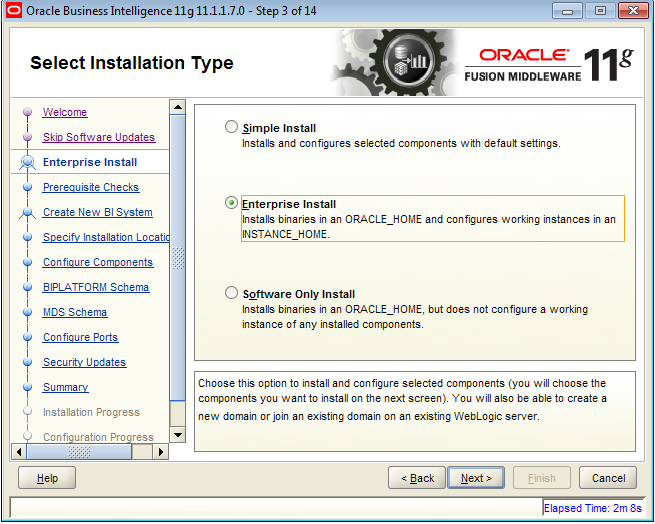
Select Enterprise Install Click on NEXT
Click on NEXT
Provide password as Admin12$$#
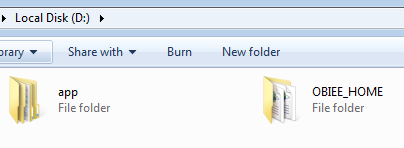
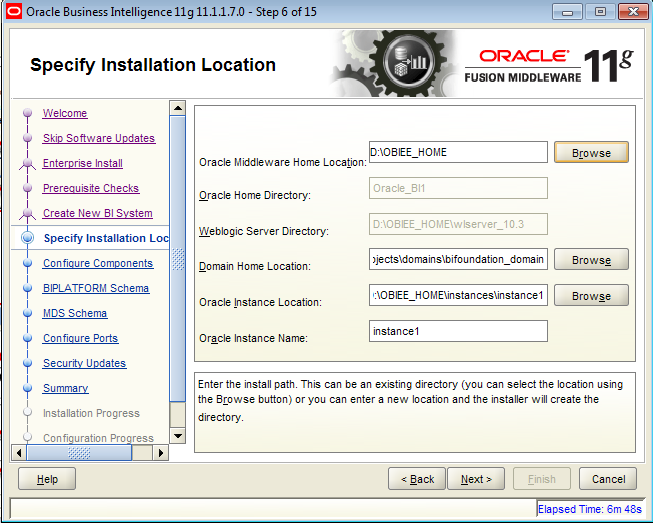
Provide Oracle Middleware Home Location as D:\OBIEE_HOME
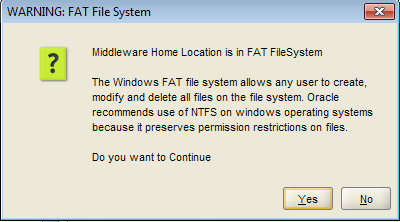
Click on YES
Click on NEXT
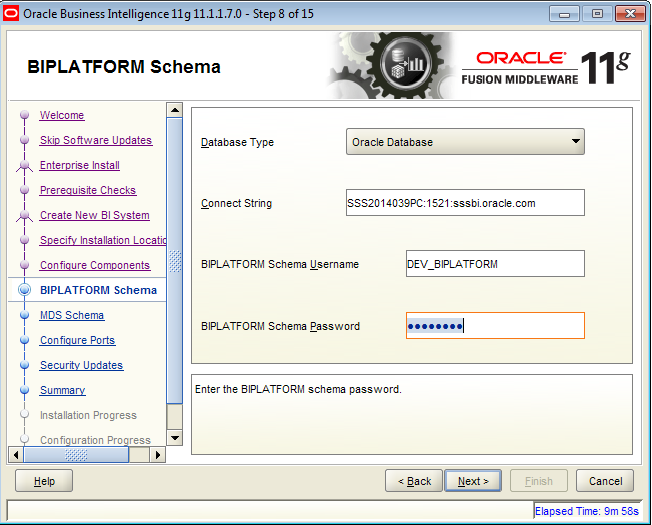
Provide below details
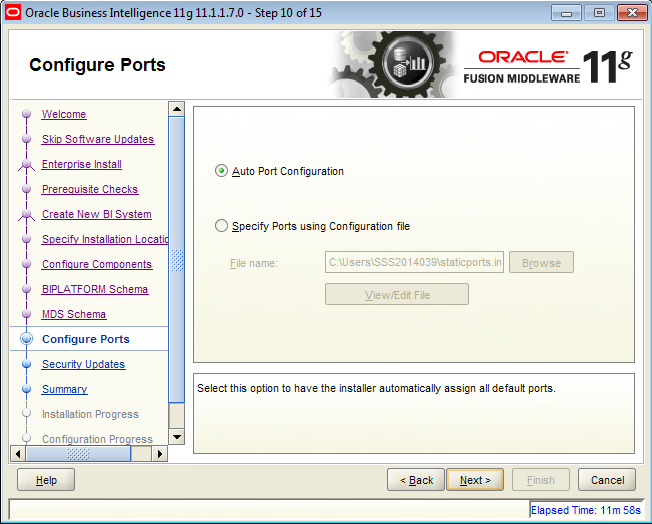
Select Auto Port Configuration Click on NEXT
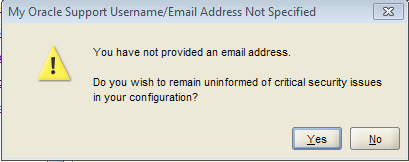
Uncheck below option Click on NEXT
Click on YES
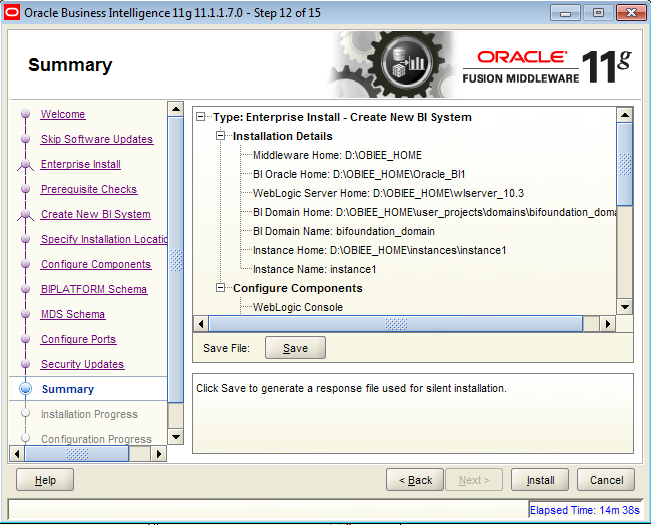
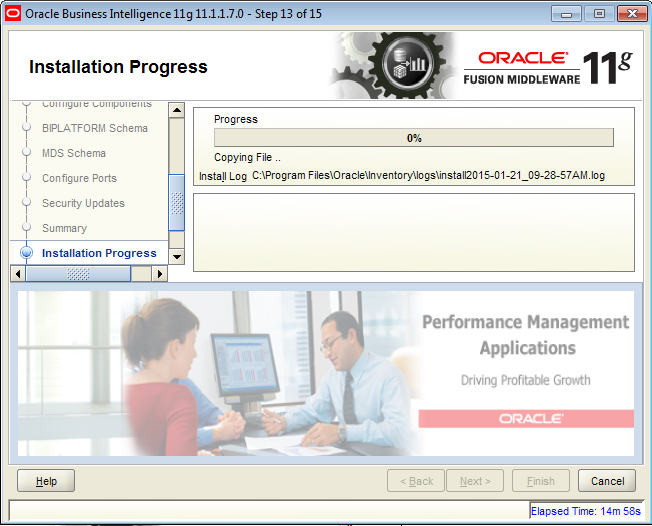
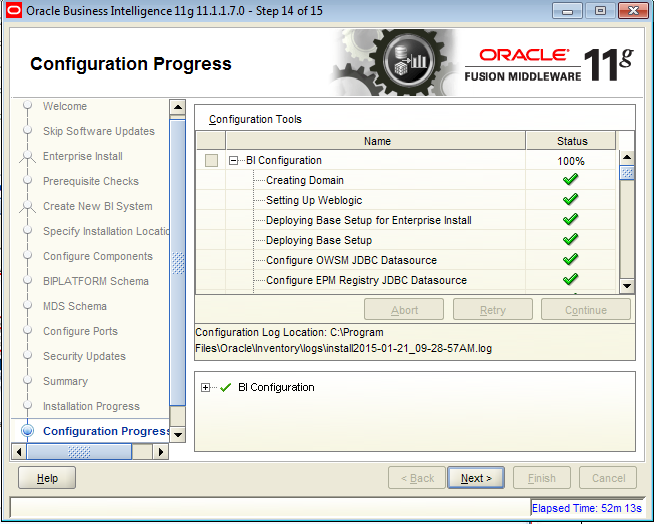
Click on INSTALL


.. to be continued Navigate to UPGRADE WEBLOGIC SERVER 10