In this article we will explain the SAP HANA (High-Performance Analytic Appliance) architecture Overview and in detail about the heart of the SAP HANA Database System that is Index Server.
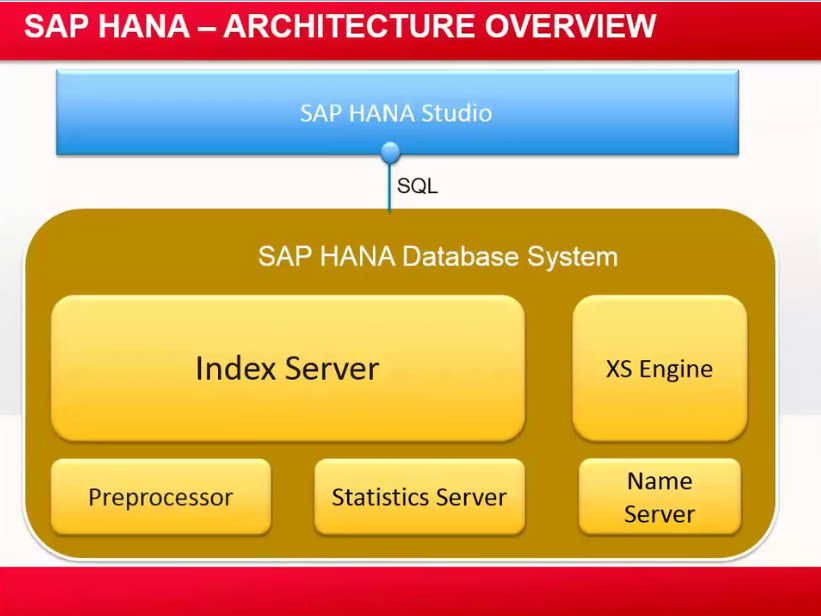
SAP HANA Studio Architecture: -
SAP HANA Database System: -
SAP HANA Database System consists of 5 Different servers,
1) Index Server
2) Pre-processor
3) Statistics Server
4) Name Server
5) XS Engine
1) Index Server: - Index Server, where actual data stores and the engine for processing the Data.
2) Pre-Processor: - Index server uses the pre-processor server internally, internally Index Server uses this server for Analysing the text data and strapping the information on which text data search capabilities are based.
3) Name Server: - Name Server has the information about Topology of the hana Database System.
In a distributed set up within the instances of a hana DB system on multiple host system.
The name server knows where the components are running and which data is located on which server, this plays an important role in the scaling environment.
In case if we want to scale, this will be the key component, which will have all the DB information of all the server, running in different environment.
4) Statistic Server: - Collects the information about status, performance and resource consumption from all components belonging into the SAP HANA DB.
Monitoring the clients such as hana studio.
Access the statistics server to get the status of various alerts, monitors, consumption information.
History of measurement for various analysis.
5) XS Engine: - Optional part of sap hana DB
Detail about the Index Server:
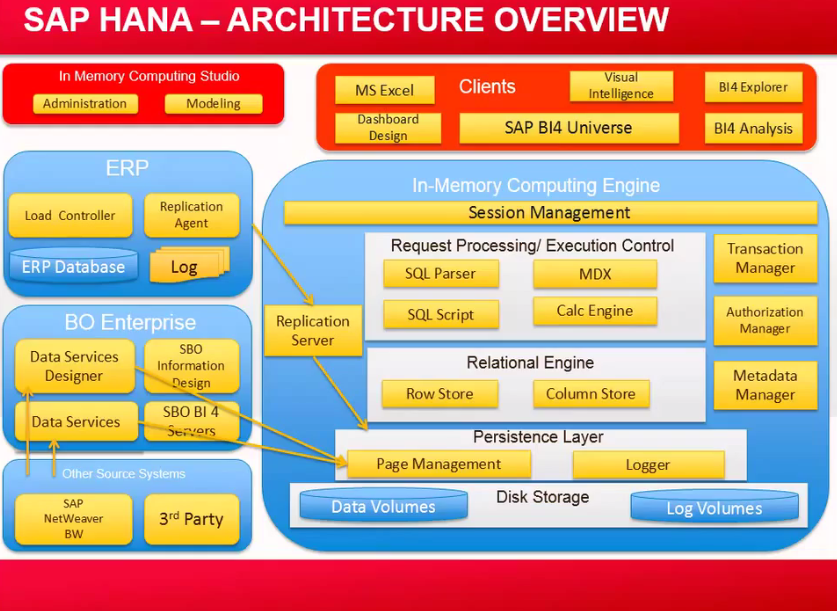
On Top we are having IMCE (IN Memory Computing Engine),
1)Connection / Session Management: - It Creates and Manages session and connections for the DB, such as the client reporting tools.
2) Transaction Manager: - Controls transactional isolation and keeps track of running and closed transaction.
Client Request are analysed and executed by set of components called,
3) Request processing / Execution control: - Once a session is established, the DB clients typically use SQL statements to communicate with Request processing / Execution control.
a) MDX:
b) SQL Parser:
The incoming SQL Statements are received by the SQL Parser.
The DML statements are executed by the SQL Parser, by SQL Processor itself and other part of statements are dedicated to the other processor/ components.
For Example, Data Definition statements, such as definition of relational tables, views, columns, index's and procedures are dispatched to the Meta data Manager.
The Planning commands are routed to the planning engine that allows financial planning application to the DB layer.
The SAP HANA DB offers programming capabilities for running application specific calculation for the DB system.
c) SQL Scripts:
- The SAP HANA DB having its own programming language.
- SQL Scripts are used to write this DB Stored Procedure.
- procedures calls are forwarded to the stored procedure processor.
- The incoming MDX commands request are processed by the MDX Engine and also forwarded to the calculation Engine.
- Features such as SQL Script, MDX, Planning Operations they are implemented using common infrastructure called CALC Engine.
These are the main components of in memory DB Engine, which takes care of,
4) Relational Engine: -
The Heart of the hana DB index server is the Relational Engine, which having Row Store and also Column Store.
A store is the subsystem of the hana DB which include in memory storage, as well as components that manage that storage.
The SAP HANA DB is having the following subsystem such as Row Store and Column Store and Object Store as well.
The Relational object store act as DB
Row and Column Data store are in memory DB, the primary DB Persistence in RAM.
Row Store: - In which the data is stored in Row format, in such case it acts as traditional DB, the data is retrieved in rows, tuples or records.
A major difference to traditional data store is all data stores in memory, anything to do with row store is always in memory.
Column Store: - Heart of the SAP, basically this is what provides the faster, processing, speed, faster analytic speed, it basically stores table column wise
5) Persistence Layer: - In case of power failure and in case if we want to restart the system .All the information is stored in Disk, all the Persistence information and logging information is stored .
In Memory Computing engine and In Memory Computing Studio, these are the key components of hana.
And a part from that we are having DB Clients like JDBC, and ODBC which allows to connect client tools to the hana.
A part from that we are having ERP Systems and BO Enterprise which uses Data Services Designer and Data Services to access the system data.
And other system like SAP BW, Net wear.
so, they depend on whether client need to connect to ERP environment and BO Environment, and we are having BI Components depending on which client reporting scenario is having.
Totally depend on customer landscape and customer scenario.
Heart of SAP HANA is in Memory Computing Engine.
ERP, Replication Agent connecting to the Hana DB, through the Replication Server using SL Transformation Server, to get Real Time Application into SAPHANA.
SAP Net weaver, BW, BO Enterprise, which also connect to hana DB through Data Services, job server, it will connect to SAP HANA.
Different Reporting tools, which is related to SAP BI, SAP BO portfolio using this to provide existing reporting as well.
For Real Time Replication SAP is using Trigger based Replication Server SAP SLT.
ETL Based, BODS and Data Extractors(DXE) to extract the data directly to the hana DB.
Replication, SAP SLT- Trigger Based Replication
BODS- ETL Based, Data services scheduled batched replication
Modelling, SAP HANA Studio: Tables can be replicated using the replication server either SLT or BODS and on top of it we will do modelling.
Reporting, Different Reporting tools we will use such as jdbc, odbc driver, that comes together with SAP HANA.
Disk Storages, which maintains the Data volumes and Log volumes which will take care of all the changes that are done in the SAP HANA.
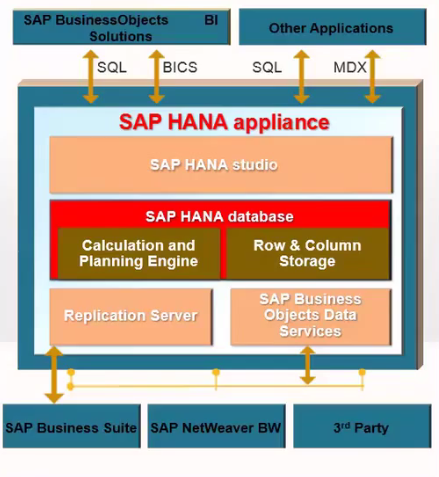
Some are using SQL, BICS and MDX and some are using replication server and some BODS.
SAP HANA Appliance, delivered by some of the H/w and S/W partners, they have s/w, Linux SUSE, Intel installed on H/w like HP, IBM, CISCO, DELL.
In memory Computing Engine, S/w basically do data modelling and data management features and Real Time Replication using SLT and BODS.
Everything we are having in Memory, do not need any aggregates.
To Analyse the data by how we store the data in row and column store.