Mongo DB Installation Steps:
Step 1:
Step 2:
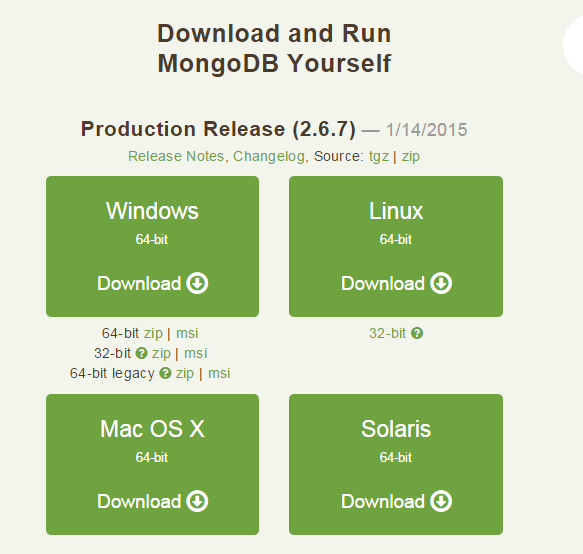
We will get this window, select one option based on O.S configured in your system
Step 3:
By selecting the above option we will get setup file
Step 4:
Double click on setup file we will get this window

Step 5:
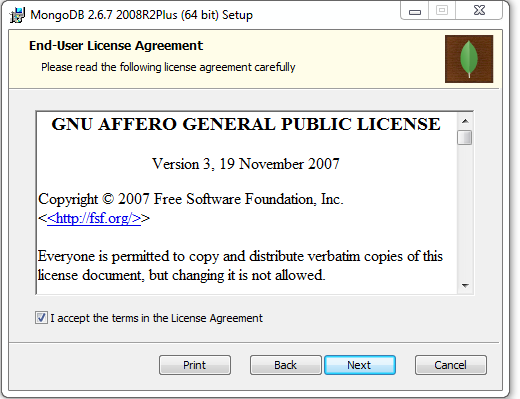
Click the license agreement check box
Step 6:
Select Typical as setup type

Step 7:
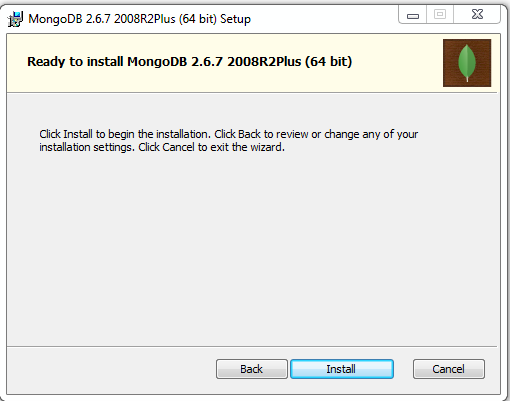
Click Install option
Step 8:
Click Finish option

Mongo DB Connection:
Step 9:
After installing the mongo DB
We will get that installation path in this above location
C:\Program Files\MongoDB 2.6 Standard\bin
Step 10:
Open command prompt and copy the mongo DB installation path
cmd>cd C:\Program Files\MongoDB 2.6 Standard\bin
Step 11:
Mongo DB requires a data folder to store its files. The default location for the Mongo DB data directory is c:\data\db. So you need to create this folder using the Command Prompt. Execute the following command sequence
C:\>md data
C:\md data\db
Step 12:
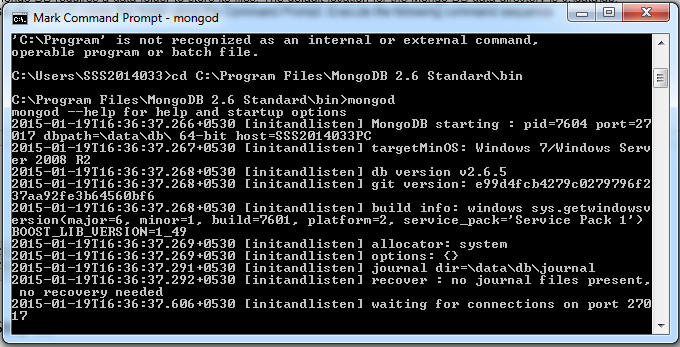
C:\Program Files\MongoDB 2.6 Standard\bin >mongod.exe --dbpath "c:\data\db"
in this dB path represents the path where to store data, we will put that path in double-quotes(“ “)
This will show waiting for connections message on the console output indicates that the mongod.exe process is running successfully.
Step 13:
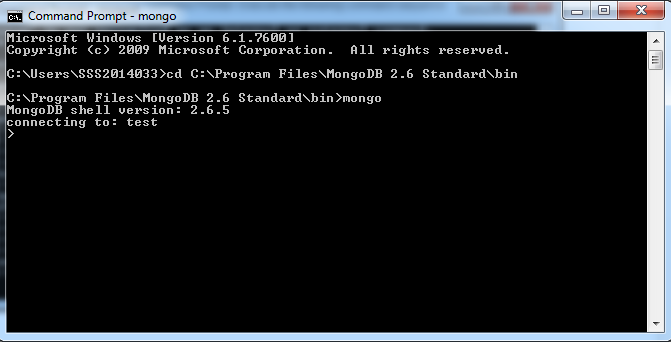
Now to run the mongo db you need to open another command prompt and issue the following command
C:\Program Files\MongoDB 2.6 Standard\bin >mongo.exe
MongoDB shell version: 2.4.6
Connecting to: test
>