
Implementing the steps for loading the data from multiple flat files to
single oracle table
Source:
- Let us consider the Flat files(txt files) namely
1) flatfile1.txt
2) flatfile2.txt
3) flatfile3.txt
4) flatfile4.txt
5) flatfile5.txt
keep all these files in a folder and save it in a Local Drive.
- These flat files are having same structure with unique data and to be considered as the source.
- In oracle DB, create a new schema as source and grant DBA permissions to it. In this schema, create a table(KC) with the columns as FID, FILENAME, STATUS and insert the values as follows
FID FILENAME STATUS
----- --------------- ------------
1 flatfile1 N
2 flatfile2 N
3 flatfile3 N
4 flatfile4 N
5 flatfile5 N
- This table could be called by refreshing variable at ODI level.
Target:
- In Oracle DB, in the same schema create a table (CL) with columns similar to the flat files structure (i.e., the columns present in the flat files are to be taken).
- Data is to be loaded after executing the ETL process.
Loading data from Source to Target:
- In ODI, login to work repository. We have the source as Flat file. So in Physical Architecture select the Technology as File Technology.
- File Technology -->New Data Server --> Name: Give any name.
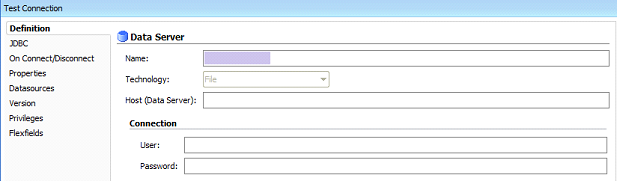
- Go to JDBC ,
JDBC Driver: Click on search icon, keep the JDBC Driver as appears and
click ok.
JDBC Url : Click on search icon, keep the Url up to jdbc:snps:dbfile and
delete the remaining and click ok.
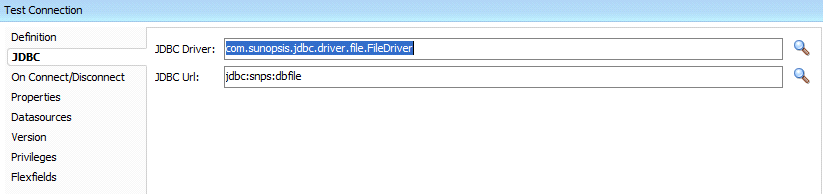
- Data Server for source is created.
- Now create Physical Schema for this Source Data Server.
- Right click on the Data Server select Physical Schema.
- In the Physical Schema (Definition), select
Directory (schema) : Place the path were the flat files are saved
Directory (work schema): Place the same path as above
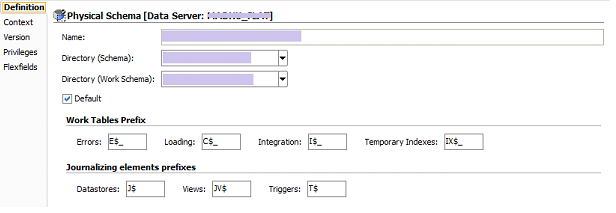
- Now move to context and set the logical schema. Select context as Global & set Logical Schema with any name ending with “_LS”.

- Hence, the process completed for file technology.
- Now select the Oracle Technology in Physical Architecture for the Target.
- Oracle Technology -->New Data Server --> Name: Give any name.
- Give the User name & Password as the Schema and password created for the Target.
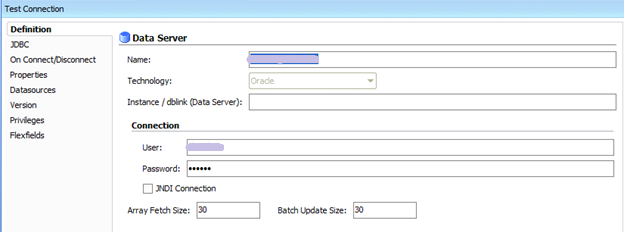
- Move to JDBC,
JDBC Driver: Click on search icon, keep the JDBC Driver as it appears and click ok.
JDBC URL : Click on Search icon, set
Hostname as localhost, Port number as 1521, SID as orcl
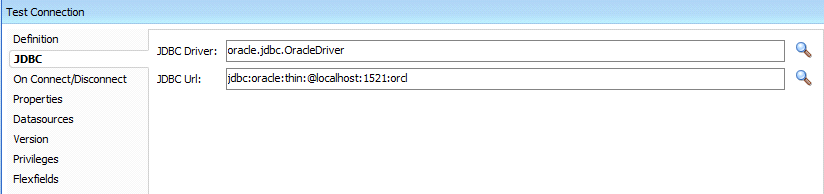
- Data Server is created for Target.
- Now create Physical Schema for the Target Data Server.
- Right click on the Data Server, select Physical Schema.
- In the Physical Schema (Definition), select
Directory (schema) : Point out the Schema which was created
for target.
Directory (work schema) : Same as above
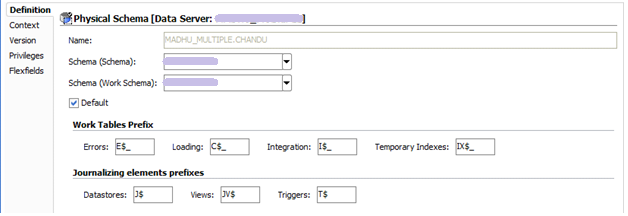
- Now move to context and set the logical schema.
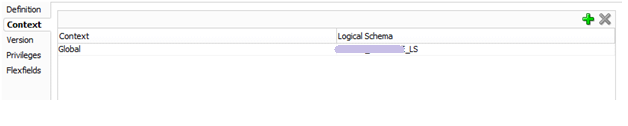
- Hence, the process completed for the Oracle Technology.
- Now go to Designer component and create a new Model folder

- Now create a new model for source (i.e., for flat files) as follows

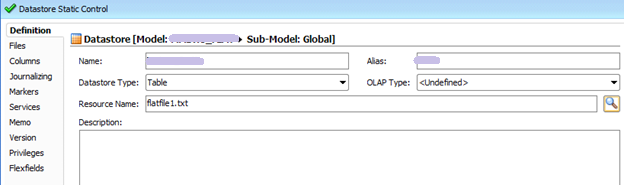
- Here, the source is Flat file. So for this we have to create Datastore.
- Right click on the source model and select New Datastore. It displays a window.
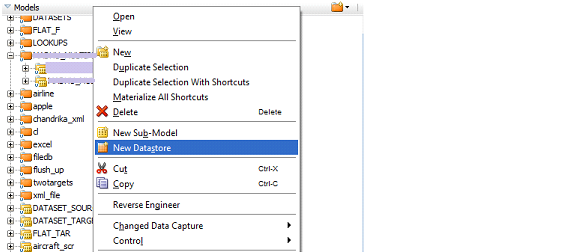
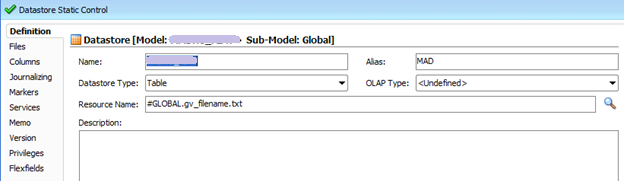
- In this, for Resource Name: Point out the flat file name with “.txt” extension as below
- Now create a model for Target
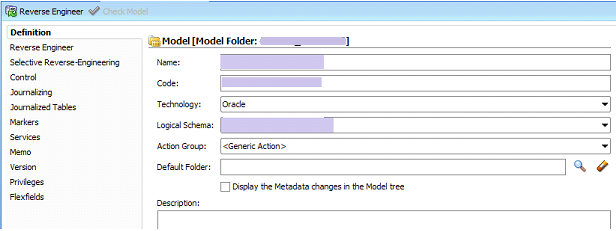
- Move to selective Reverse-Engineering and follow as below

- Reverse Engineering for target is completed.
- Create a Global Variable as below
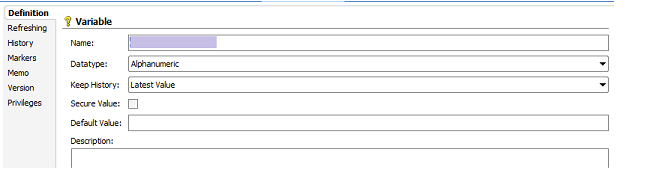
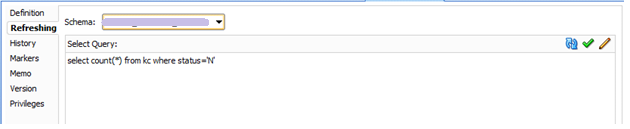
- Move to Refreshing, set the Schema and for Select Query write the query as follows

- Create a New Project

- In this Project, Create a Project Variable as below
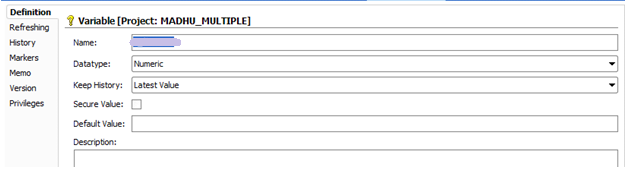
- Move to Refreshing, set the Logical Schema and Select Query as below—
- Now create an Interface

Now change your resource name as the global variable name .
Note: change resource name before using them in the mappings.
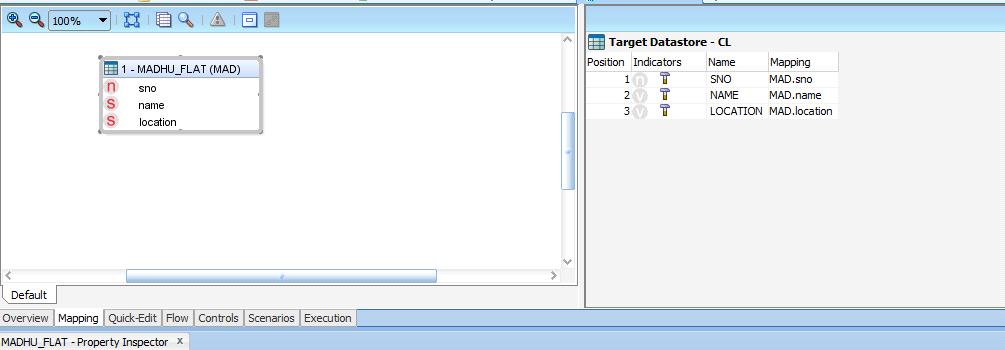
- Now go for Mappings
- Import the Knowledge Modules as per the requirement
For LKM select FILE TO SQL
For IKM select SQL CONTROL APPEND
- Set Flow Control as TRUE
- Set Truncate as False

- Create a Procedure as follows
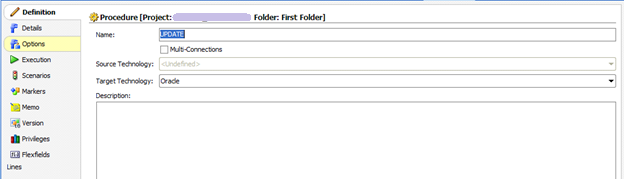
- Go to Execution and make as follows

- Create a Package in this Project and arrange as below
- v_filecount as refresh variable
- v_filecount as evaluate variable and remaining variables as
- refresh variables
- The arrangements should appear like below
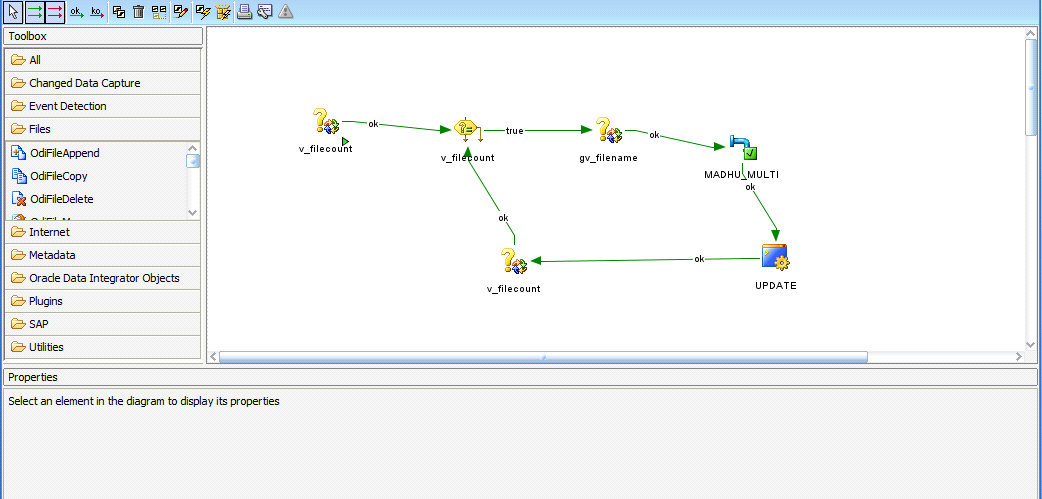
- Now save and execute it.
- Check the status in Operator Component.
- Hence, the data loaded into Target Oracle Table.
- Also check the KC table in DB. Observe that the status was updated to “Y”.
FID FILENAME STATUS
----- --------------- -----------
1 flatfile1 Y
2 flatfile2 y
3 flatfile3 y
4 flatfile4 y
5 flatfile5 y
