Monday, February 4, 2013

[OBIEE 10g] Identifying The Hierarchy Level


OBIEE identifying the hierarchy level


To identify the hierarchy level which the user is currently on.


One way of doing this is "using" the aggregate awareness availability of a column. First you create a "dummy" aggregate view for each hierarchy:

  • year_level: select distinct d_year, 4 AS DIM_LEVEL from d_date
  • quarter_level: select distinct d_quarter, 3 AS DIM_LEVEL from d_date
  • etc.


These tables you physically join to your dimension:


Add Dummy joins to your other dimensions:


Set the expression to 1=1


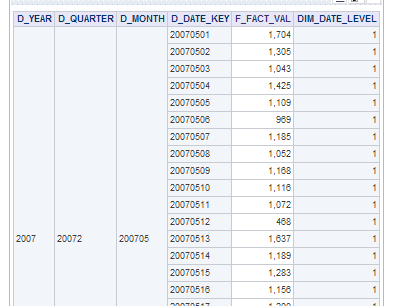
In your fact table you add an extra column named dim_date_level:


Next add the sources to your fact table:


Add an inner join on your core fact table to your original dimension:


On each level source map to the column:


and set the aggregation content level:


set the aggregation level for the level column to MIN:


Test your Report:


[OBIEE 11g] Script Metadata Generation


OBIEE11g Script metadata generation


After deploying your RPD for a couple of time you will have noticed the nice versioning OBIEE does:


Problem with this versioning is that you loose your Meta Data Dictionary (MDD) setup every time you deploy a new rpd.


Actually this is good since a new RPD should mean that al your changes end up in the MDD. Especially on development systems where updates are done on & off-line, the MDD will soon be out of sync.


Why not set up a job which simple refreshes the old and adds the new onces.
WARNING This script uses the /Command for the admin tool which is NOT supported (or documented)


Let´s start with a VB script:

On Error Resume Next 

   
Dim fso, folder, files, NewFileP, NewFile, RPDFolder, MDFolder, delfolder, AdminUser, AdminPassword, WshShell
 
    Set fso = CreateObject("Scripting.FileSystemObject")
    'Be sure there is no \ at the end of the repository folder
    if right(Parameter(0),1) = "\" then
        RPDFolder = left(Parameter(0), len(Parameter(0), -1))
        else
        RPDFolder = Parameter(0)
    end if
   
    'Be sure there is no \ at the end of the repository folder
    if right(Parameter(1),1) = "\" then
        MDFolder= left(Parameter(1), len(  MDFolder= Parameter(1), -1))
        else
        MDFolder= Parameter(1)
    end if
   
    AdminUser = Parameter(2)
    AdminPassword = Parameter(3)
   
    Set folder = fso.GetFolder(RPDFolder)
    Set files = folder.Files
 
    For each folderIdx In files
    'loop trough the rpd files
        if right(folderIdx.Name,3) = "rpd" then
            'Delete the "old" meta data
            NewFileP.WriteLine( folderIdx.Name)
            set delfolder = fso.GetFolder(MDFolder&"\"&left(folderIdx.Name,len(folderIdx.Name)-4))
            delfolder.Delete
            Set NewFile = fso.CreateTextFile(RPDFolder&"\nqGenerateMetaData"& left(folderIdx.Name,len(folderIdx.Name)-4) &".txt", True)
            'Add instructions to the \nqGenerateMetaData.txt file
            NewFile.WriteLine( "Open "&  RPDFolder &"\" &left(folderIdx.Name,len(folderIdx.Name)-4) & " " & AdminUser & " "&   AdminPassword & " "&   AdminPassword)
            NewFile.WriteLine( "Hide")
            NewFile.WriteLine( "GenerateMetadataDictionary " & MDFolder & "\" )
            NewFile.WriteLine( "DescribeRepository " & MDFolder & "\"&left(folderIdx.Name,len(folderIdx.Name)-4) & "\REPOS.XML  UTF-8")
            'add the closing commands           
            NewFile.WriteLine( "Close")    
            NewFile.WriteLine( "Exit")
            NewFile.Close   
            'run the script
            Set WshShell = CreateObject("WScript.Shell")
            WshShell.run ( "D:\OBIEE\Oracle_BI1\bifoundation\server\bin\AdminTool.exe /command " & RPDFolder& "\nqGenerateMetaData"& left(folderIdx.Name,len(folderIdx.Name)-4) &".txt")
                       
            Set NewFileD = fso.CreateTextFile("d:\xslcopy" & left(folderIdx.Name,len(folderIdx.Name)-4) &".bat", True)
            NewFileD.WriteLine ( "MD " &  MDFolder & "\" & left(folderIdx.Name,len(folderIdx.Name)-4)& "\xsl")
            NewFileD.WriteLine( "COPY D:\OBIEE_REP\Scripts\MetaDataDictionary\xsl\*.* " & MDFolder & "\" & left(folderIdx.Name,len(folderIdx.Name)-4)& "\xsl")
            NewFileD.close
            WshShell.run ("d:\xslcopy" & left(folderIdx.Name,len(folderIdx.Name)-4) &".bat")
       
        End if
    Next

Put it in a file called “AutomateMetaDir.vbs”


The GenerateMetadataDictionary command in 11g doesn’t created the proper XSL directory from the command line. Create one from a manual export and put it in your script directory so you can copy it when needed. 


Create a new job to refresh every thing once every x hours.


Don’t forget the parameters:


[OBIEE 11g] Adding Documentation Files To The Catalog


OBIEE Adding documentation files to the Catalog


To upload your documentation files to your catalog


First go to the catalog manager in browser: expand your shared folders:


Click on new > Folder


Give it a meaningful name:


Select the folder:

 
Press Upload:


Select a file:


Now your documentation is accessible from the catalog:


Put it for instances as a link on your dashboard:
The path is a bit tricky to get used to:

http://<<SERVER_NAME>>: <<port>>/analytics/saw.dll?downloadFile&path=%2FShared%2FDocumentation%2Fdocumentname.ext


Now this might not be the easiest way to publish your documents, but the great advantage is that you can use the OBIEE security model to control access:


Friday, February 1, 2013

[OBIEE 11g] Saving RPD As XML Content


Saving OBIEE RPD As XML Content


This is how to use  SVN integration in Admin Tool.This helps to merge and diff RPD work from Admin Tool or versioning system of choice. It gives more choice such as which versioning system to use and independence from Oracle’s SVN feature set included in tool which is a subset of SVN anyways.


For now, versioning RPD files is a two-step process.  We still have to deploy binary RPD file.  The general idea is to convert RPD file into XML directory structure to put in your version control system of choice and convert back into binary to deploy.


Overview

Starting from your RPD file, go to File, then Copy As and save your work as MDS XML Documents…


Tool asks you to Select XML Directory to store the contents of RPD as XML.


Select your directory and press OK.


Instead of the RPD file, this directory is what we would put up in version control.  At this point, we would do all our work from this MDS XML Document directory.


Open this location now form Admin Tool.


Notice that now, Admin Tool states that we are working out of directory instead of RPD file


Inside the directory selected (or created), You end up with a directory structure of XML files.


And inside each directory, you end up with a list of XML files, one for each element of the directory in question.  I.E. – For the the Logical Table directory, you end up with an XML file per logical table in your model.


This is were it gets a bit tricky. There is no easy way to differentiate one of these XML files from the thousand of others in directory structure.  This will make diffing and merging this directory lots of labor.  Still, it is way better than MUD or multiple developers with inconsistent copies of an RPD file.


Since these files are XML, however, we can use our favorite editor or tool to, at least, inspect differences between iterations of our work.


I would be hesitant to do much editing of these files for fear of rendering them unusable by the Admin tool. At least we have backups now .


After you finish development (and pass review before committing), you will have to convert this XML directory back into RPD format to deploy.  OBIEE can only deploy (for now?) RPD.


This is the RPD representation of your, now versioned, model work.